Signing in, and what to do when you can't
Sign in with the email address and password you created your account with. When it fails, the reason is one of three: the password is wrong, the email address was never verified, or your access to the practice was removed. Here is how to tell which, and what fixes each.
On this page
Browse categories
Sign in
- Open the sign-in page. Any Syncroly page that needs an account sends you there when you are signed out.
- In
Email, enter the address you signed up with. - In
Password, enter your password.Showreveals what you typed. - Select
Sign In.
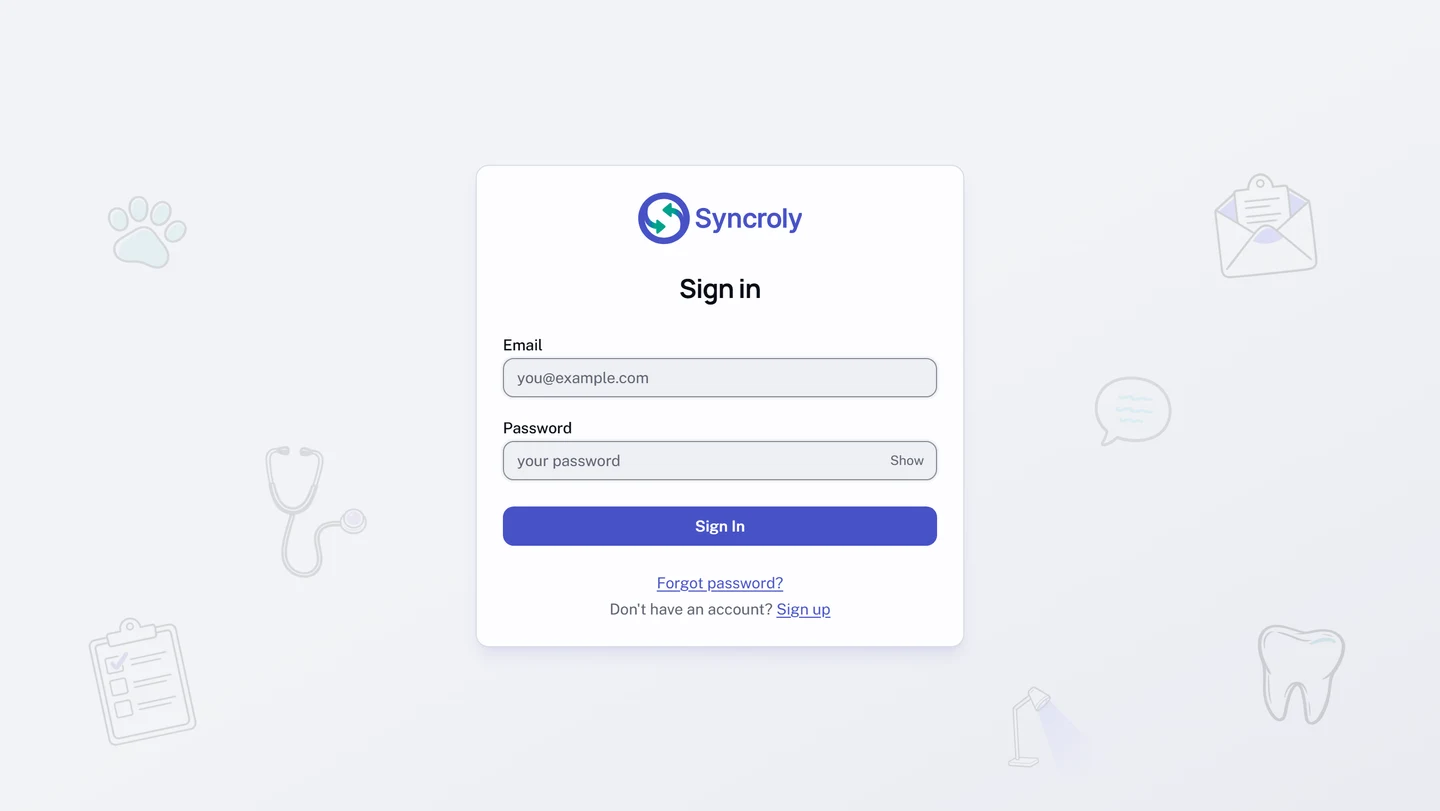
You land on Overview. If you were partway through setting up your practice, you land on the step you left instead.
Syncroly has no passwordless sign-in. The links in referral emails open the referral they belong to; they do not sign you into your account.
When sign-in fails
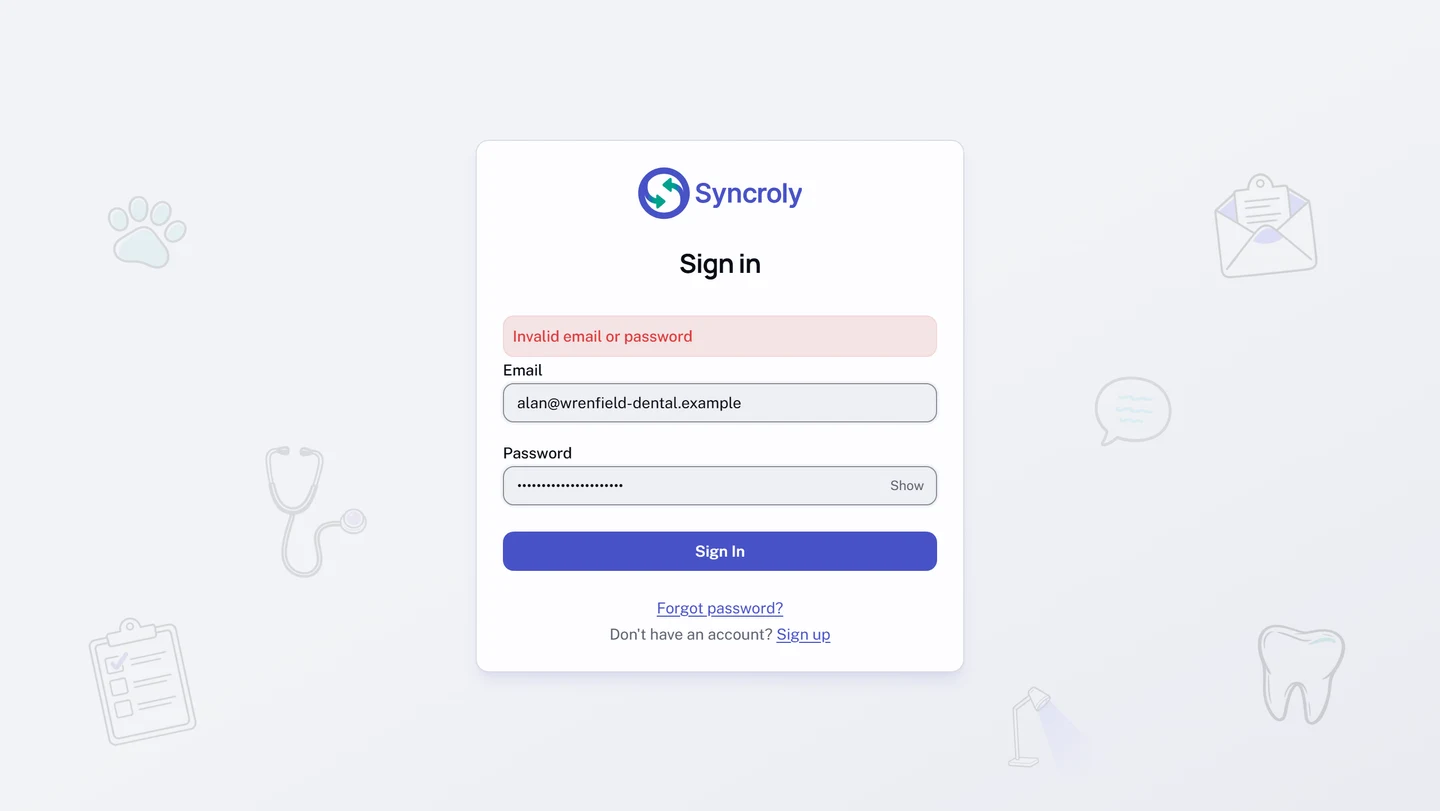
The message under the Sign in heading tells you which problem you have.
Invalid email or password. Either the address or the password does not match. Syncroly deliberately does not say which. Check the address for a typo first, then use Show to check the password. If you are sure of both, reset the password below. The same message appears if your practice removed your access or deactivated the practice; if a reset does not help, ask your practice Owner.
Please verify your email address before signing in. The account exists but the code Syncroly emailed at sign-up was never entered. Select Resend verification email under the message, then open the email and follow the steps in the next section.
After several failed attempts in a row, Syncroly asks you to wait a few minutes before trying again.
Finish verifying your email
- Open the verification email from Syncroly. The subject line starts with the 6-digit code.
- On the
Verify your emailpage, enter your address inEmail addressand selectContinue. If the page already shows your address, skip this step. - In
Verification code, type the 6 digits. - Select
Verify email.
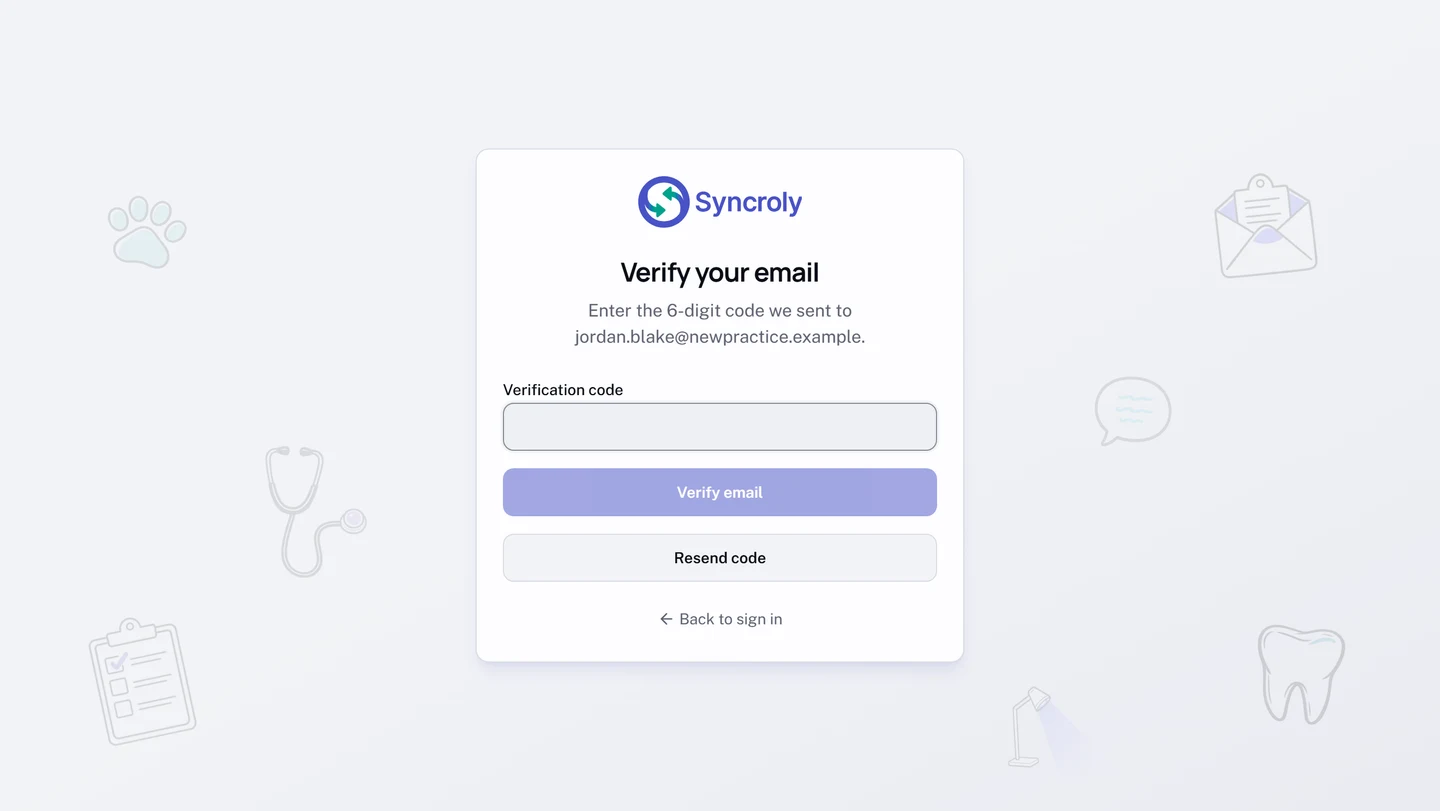
Verifying signs you in and continues to setting up your practice, which Create your account and set up your practice walks through. A code works for 15 minutes, and five wrong entries in a row cancel it; Resend code on the same page sends a fresh one and cancels the old one. If no email arrives, check your spam folder, and check that the address on the page is the one you signed up with.
Reset a forgotten password
- On the sign-in page, select
Forgot password?. - On the
Reset Passwordpage, enter your address inEmailand selectSend Reset Link. - Open the email from Syncroly with the subject
Reset your Syncroly passwordand selectReset Password. - On the
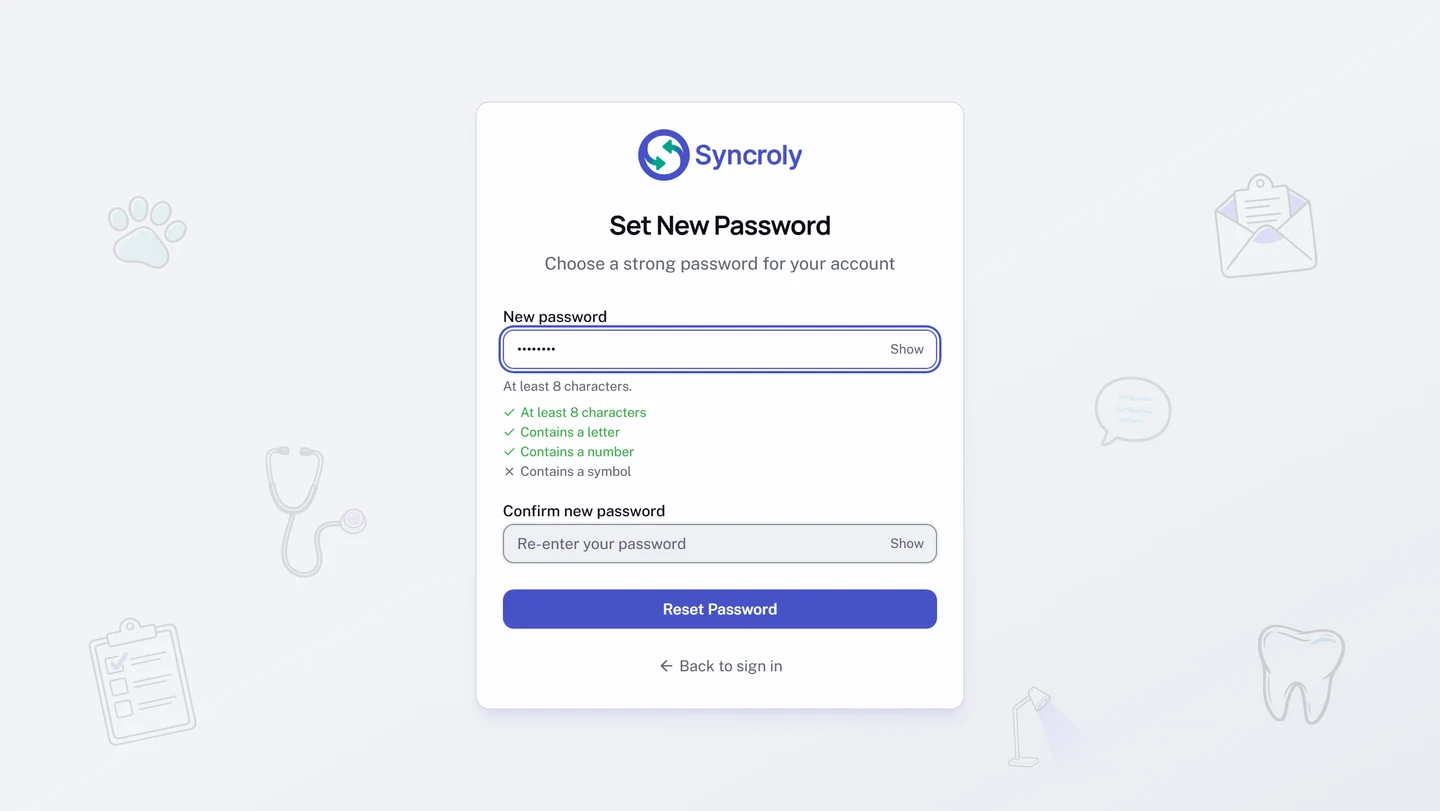
Set New Passwordpage, enter your new password inNew passwordand again inConfirm new password. - Select
Reset Password.
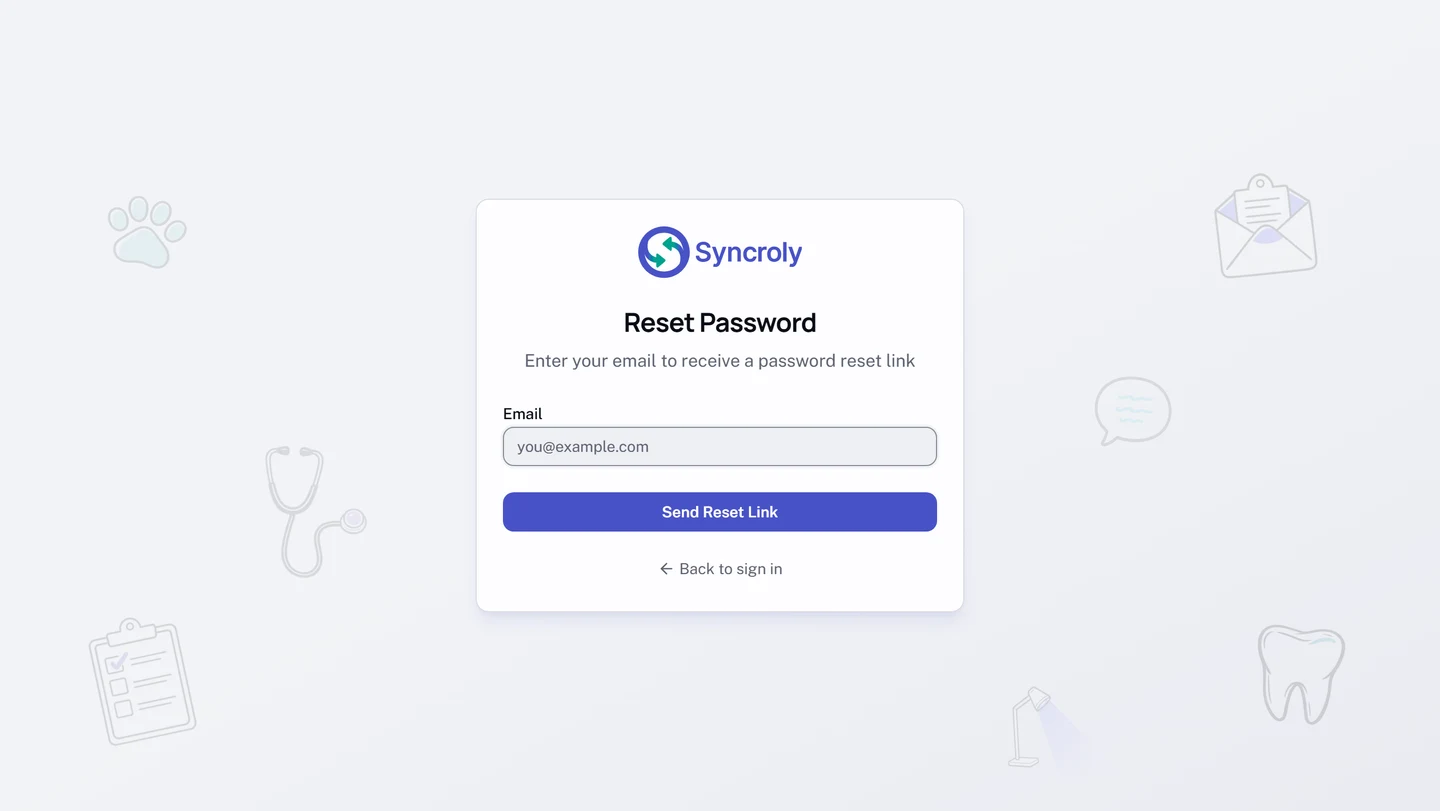
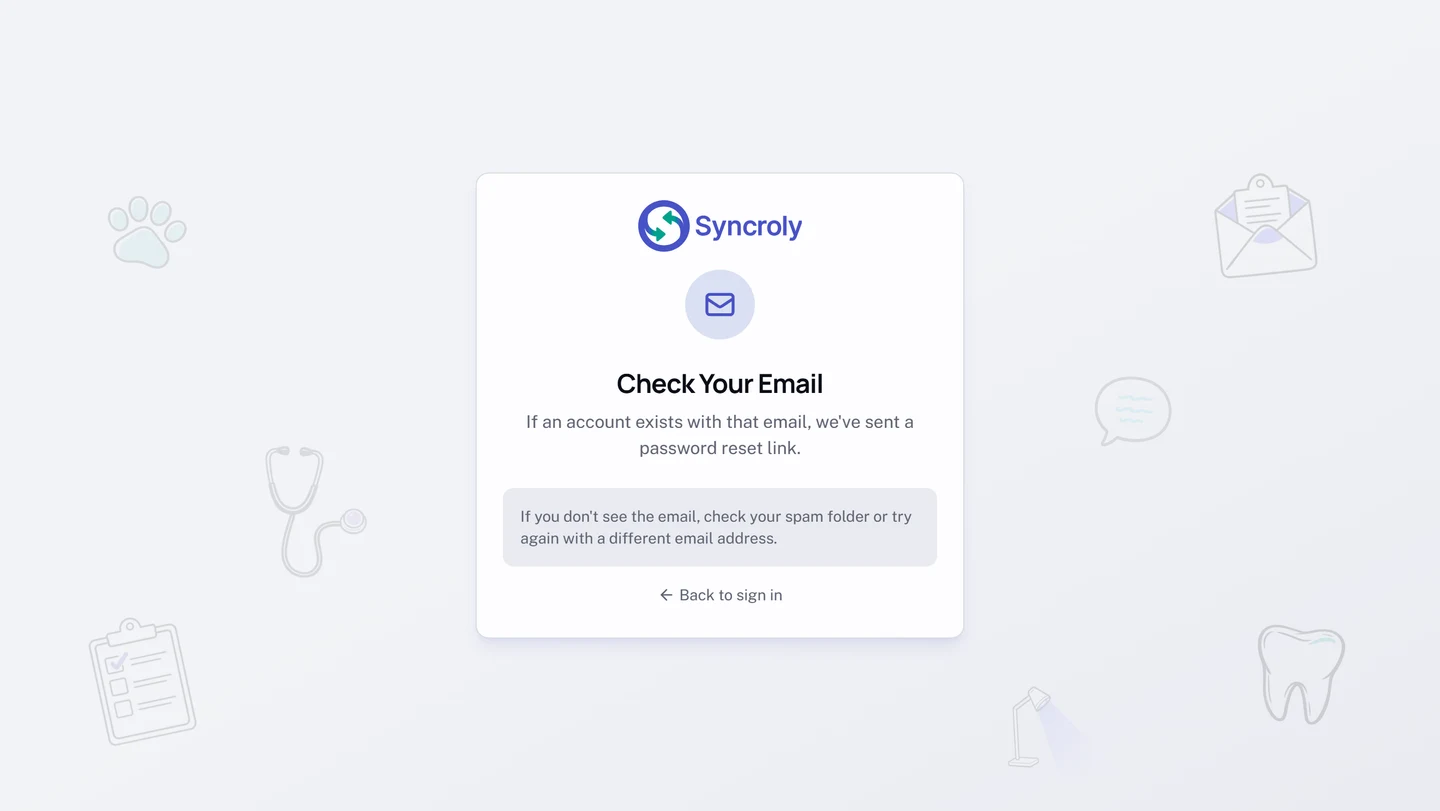
The page confirms with Check Your Email whether or not an account exists for that address, so a typo in the address looks the same as success: if nothing arrives, check the address and send again. The link in the email works for 1 hour, and only the most recent link works, so if you requested twice, open the newer email.
A password needs at least 8 characters with a letter, a number, and a symbol; the page checks each as you type. After the reset you return to the sign-in page. Syncroly emails you that the password changed, and any other device you were signed in on is signed out within a few minutes.
An Invalid Reset Link page, or Invalid or expired token under the form, means the link is older than an hour or has already been used. Select Request a new reset link and start again.
Change your password while signed in
- At the bottom of the left sidebar, select your name to open the account menu, then select
Settings. - On the
Profile & Securitypage, scroll to thePasswordcard. - Fill in
Current password,New password, andConfirm new password. - Select
Save changes.
The new password applies immediately, Syncroly emails you that it changed, and any other device you were signed in on is signed out within a few minutes. Your sign-in email address cannot be changed from settings; contact support for that.
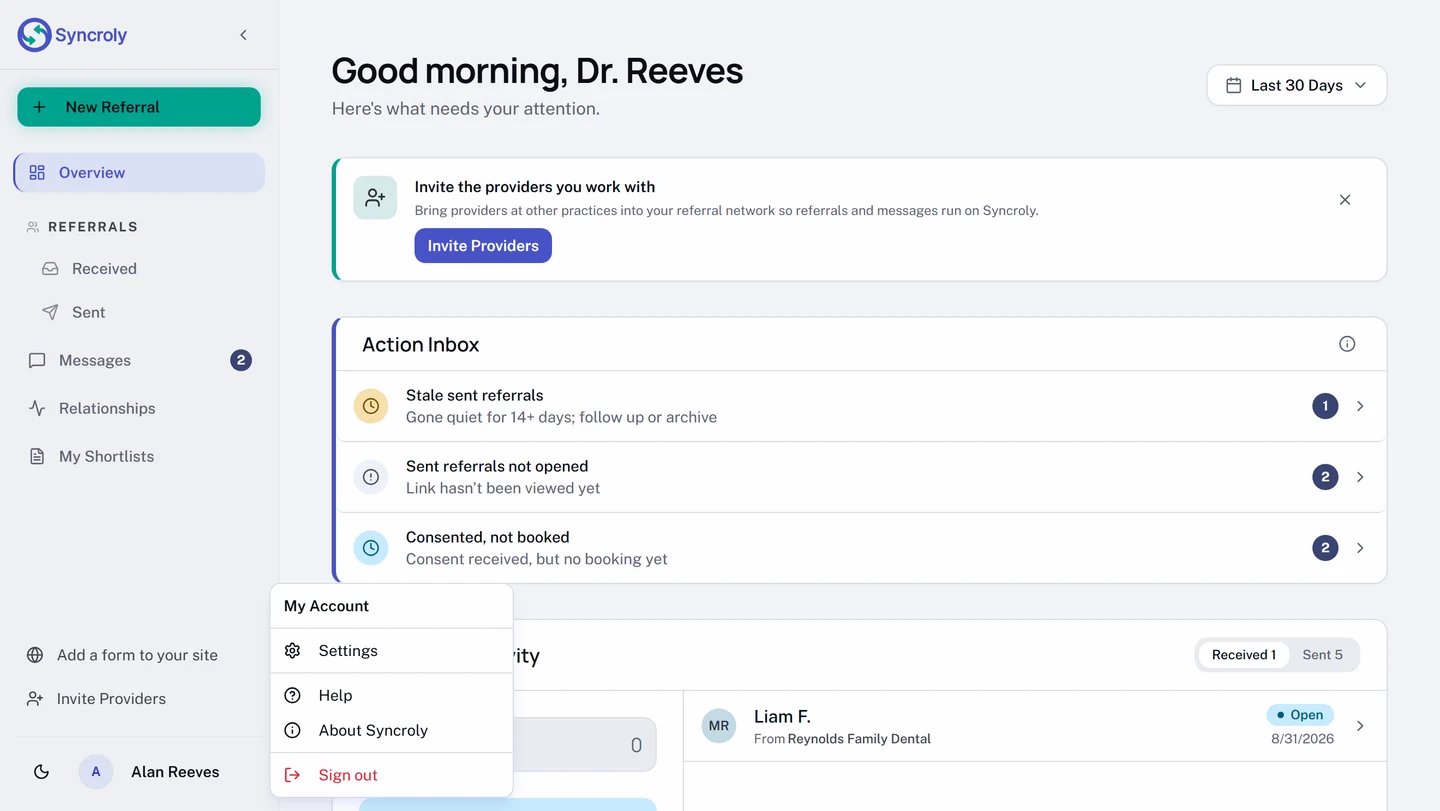
Sign out
On a desktop, select your name at the bottom of the left sidebar and choose Sign out. On a phone, open the menu at the top left and select Sign out under Account, or select your initial at the top right and choose Sign out. Either way you return to the sign-in page.