Set up and use Front desk
Front desk is one sign-in for everyone who works your front desk. Each person signs referral actions with their own four-digit PIN, so your team can see who did what.
On this page
Browse categories
What Front desk is
Front desk signs in with your practice's shared email, so the people at your desk don't each need a login. When someone does something another practice or the patient will see, such as sending a referral, Syncroly asks for their PIN and records that it was them.
Front desk can create, send, and update referrals, save drafts and send them for review, see and assign every referral your practice receives, mark referrals contacted or booked, and message other practices. It can't manage your team, practice settings, or billing, open the Activity Log, or send direct messages.
An owner or administrator sets it up and manages the people on it. Everything from Accept the invitation on is for the people at the desk.
Invite Front desk
- In settings, under
Practice, openTeam Members. - In the
Front Deskcard, selectInvite Front Desk. - In
Shared email address, enter the email your front desk team shares. - Select
Send Invitation.
Use an address that isn't already someone's Syncroly sign-in. It becomes your practice email, which gets your practice's referral alerts. If you already have a practice email, Front desk must use that address. To move Front desk to another address later, change the practice email.
Someone at the desk then accepts the invitation, within 7 days. Until then the card offers Resend and Revoke. After that, it offers Resend Invitation.
Add the people at your front desk
- In the
Front Deskcard, selectAdd Person. - Enter their
First nameandLast name. - Select
Add. - Give them the temporary PIN on screen, in person.
- Select
Done.
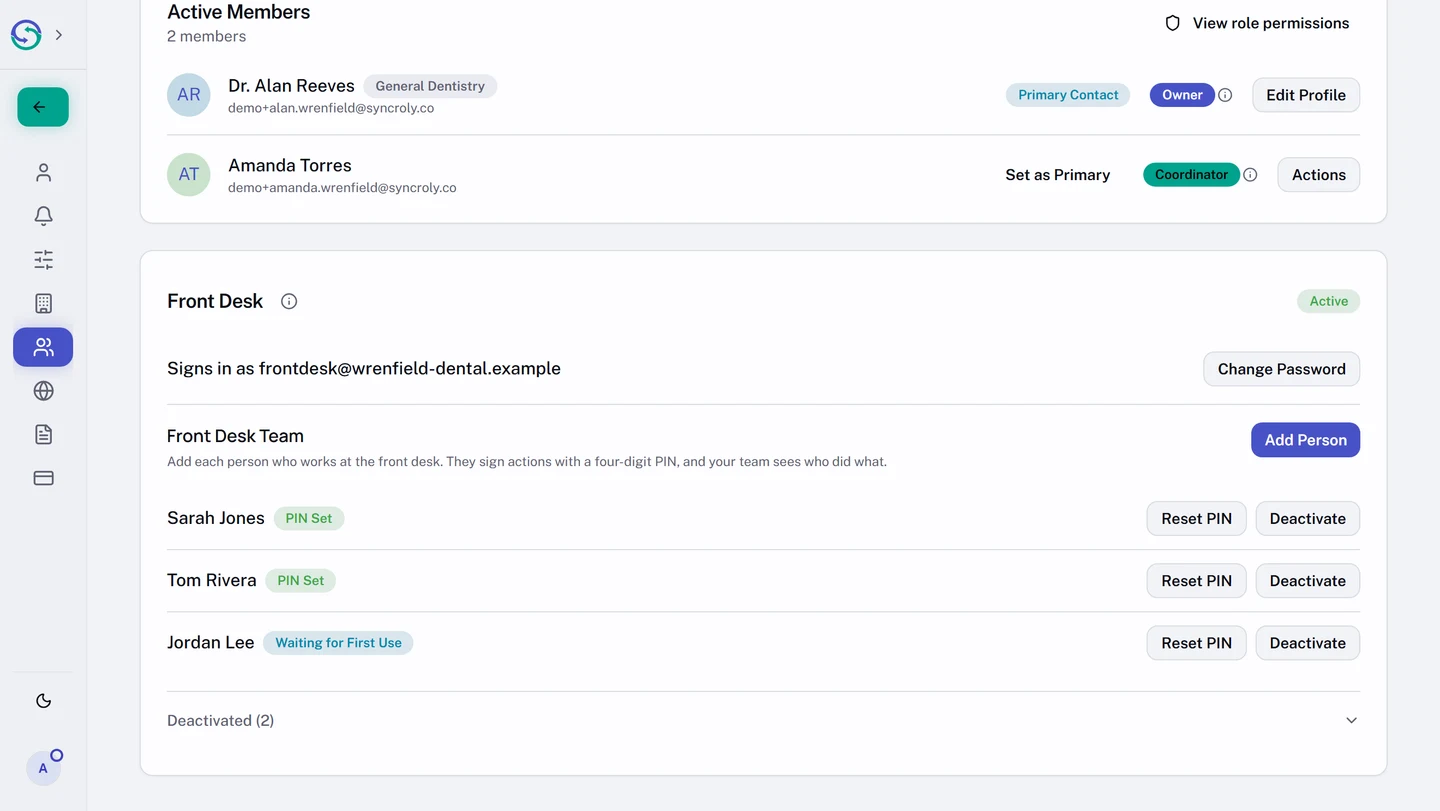
Use each person's real name, not a role like Reception. If two people share a name, add a middle initial. A name can't be edited; to fix one, deactivate the person and add them again.
The temporary PIN is shown once. The person shows as Waiting for First Use until they choose their own PIN, then as PIN Set. Nobody can see the PIN they chose, you included.
Reset a PIN, or remove someone who leaves
If someone forgets their PIN, select Reset PIN on their row and confirm. Their PIN stops working at once, and you get a new temporary PIN to give them in person.
When someone leaves, select Deactivate on their row and confirm. Their PIN stops working at once, and what they did stays in your records. They still know the shared password, so change it too.
Deactivated people are listed under Deactivated, where Restore brings someone back with a new temporary PIN.
Change the shared password
- In the
Front Deskcard, selectChange Password. - Enter the new password in
New password. - Enter it again in
Confirm new password. - Select
Change Password.
Everyone signed in to Front desk is signed out. Share the new password with your team in person; their PINs stay the same. Front desk has no reset link, so this is also the fix when the desk forgets its password.
Accept the invitation
One person at the desk does this, and the password they choose is the one everyone uses.
- In the shared inbox, open the email from Syncroly with the subject
Set up Front desk in Syncroly. - Select
Set Up Front Desk. - Enter a password in
Shared password. - Enter it again in
Confirm password. - Select
Set Up Front Desk.
Then sign in on the usual Syncroly sign-in page, with the shared email and that password. If this browser is already signed in to Syncroly as someone else, sign out first or use a private window.
Invitation Not Valid means the link has run out or was replaced. Ask your practice's owner or an administrator for a new one.
Your first PIN
The first time you sign an action, you swap the temporary PIN you were given for your own.
- Under
Enter Your PIN, enter your temporary PIN. - Select
Confirm PIN. - Under
Is This You?, check that the name is yours. - Select
Yes, That's Me. - Under
Choose Your PIN, enter four digits inNew PIN. - Enter them again in
Confirm new PIN. - Select
Save PIN.
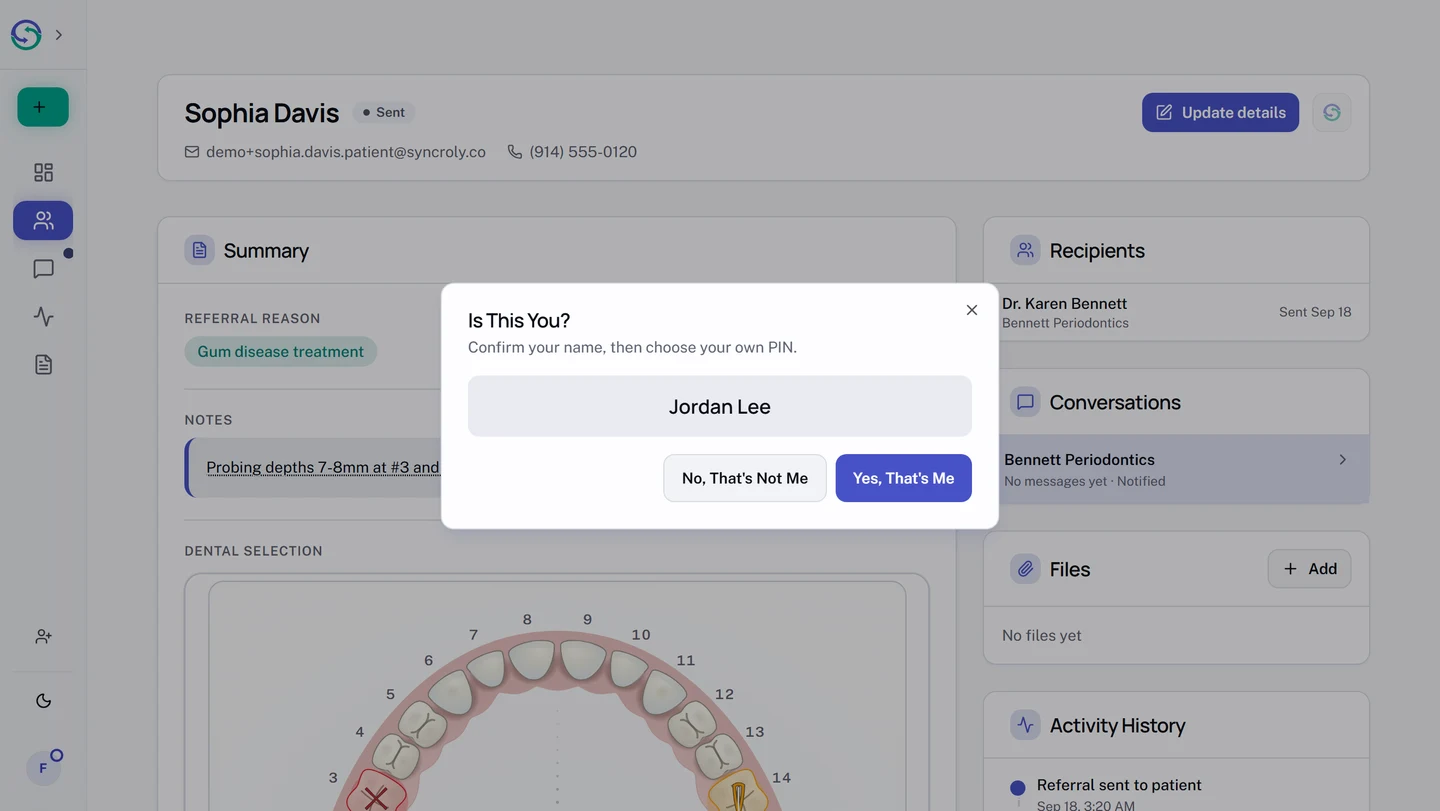
Your action then goes ahead. A PIN can't be 1234, 4321, a repeated digit like 1111, or your temporary PIN. If yours is refused, choose another.
If the name isn't yours, select No, That's Not Me. Nothing is saved or sent. Ask your office manager for your own PIN.
When you're asked for your PIN
Syncroly asks for your PIN each time you:
- send a referral, including one from a draft
- update a sent referral, or send it to another practice
- mark a referral contacted or booked
- resend a patient's link
- send a message or a file to another practice
- delete a file from a sent referral
After you send a message or file, you can keep sending in that same conversation for 15 minutes without entering your PIN again.
It doesn't ask when you read, search, or download, save a draft or send it for review, or assign or archive a referral.
If you see PIN didn't work. Please try again., check the PIN and enter it again. After several wrong PINs in a row, PIN entry slows down for a few minutes for everyone at the desk, and the message says when to try again. If you've forgotten your PIN, ask your office manager to reset it.
What your team sees
Inside your practice, an action signed with a PIN shows the person's name followed by (Front desk), on the referral and in the Activity Log. Actions that need no PIN show Front desk. Other practices see Front desk at your practice's name, never the person's. Patients see your practice, never who at the desk did it.