Audit log and data export
The Activity Log is the practice-wide record of who did what in Syncroly. This guide covers reading it, narrowing it with filters, and exporting it.
On this page
Browse categories
What the Activity Log records
The Activity Log is a running record of actions across your practice: referrals sent, consent recorded, messages and attachments, bookings, team changes, settings edits, sign-ins, and exports of the log itself. When a patient opens their referral link, that access is recorded on the referral too.
The Owner and administrators see it, both with the same practice-wide view; coordinators and practitioners have no access to it.
Reading the log
- In settings, under Administration, open
Activity Log. - Read each row across its four columns:
When,Who,What, andDetails. - Where a row concerns a referral, select the referral link in
Detailsto open that referral.
Who shows the person and their role. Details carries the specifics a row has: which colleague a team action affected, which fields a settings change touched, how many rows an export contained. Where a referral was prepared by one person and sent by another, the sent row says who prepared it.
The log shows 50 entries per page, newest first, with page numbers underneath.
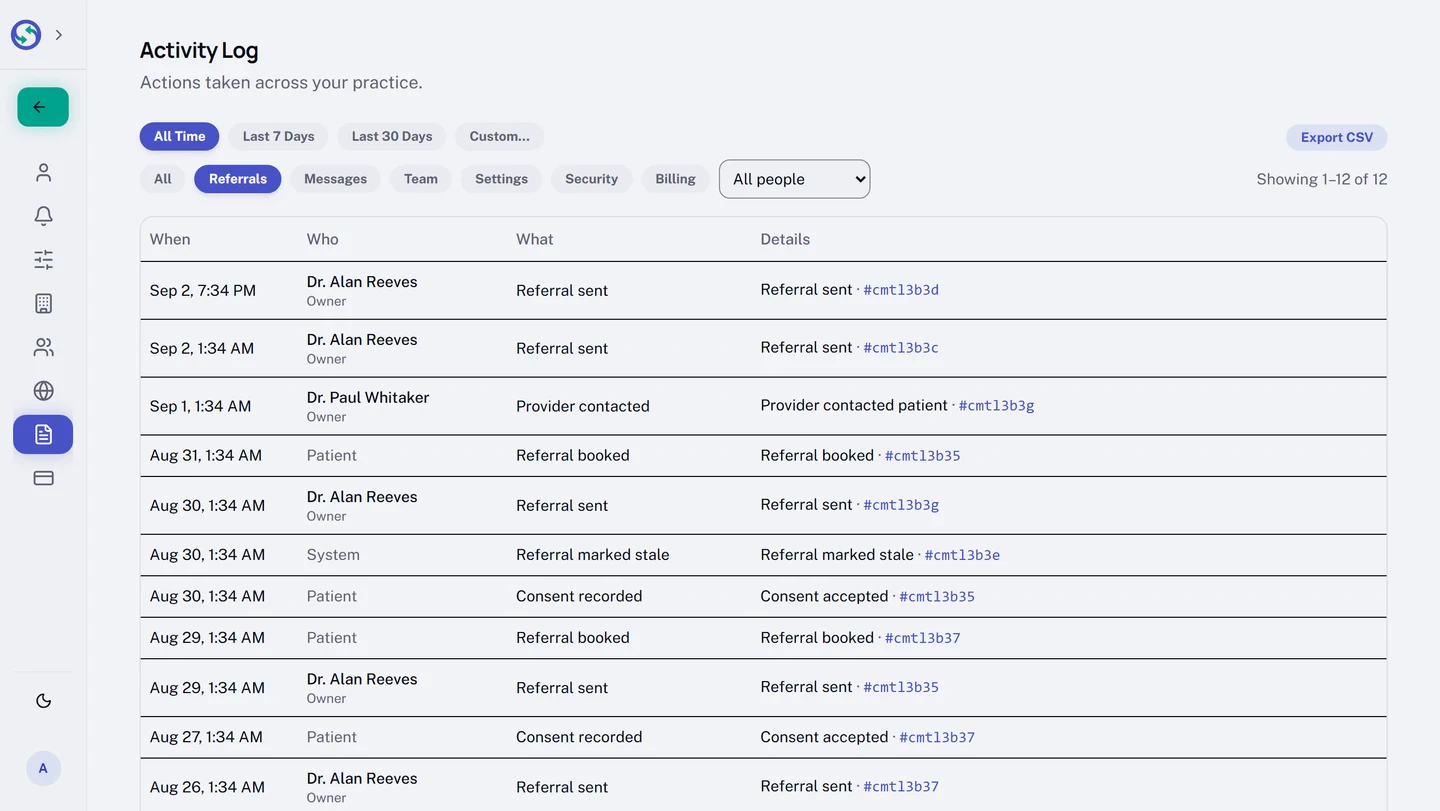
Narrowing to what you are looking for
Three filters sit above the table, and they combine:
- Date.
All Time,Last 7 Days,Last 30 Days, orCustom…, which adds a start and end date of your own. - Category.
All, or one ofReferrals,Messages,Team,Settings,Security, andBilling. - Person.
All people, or one team member from the dropdown.
To see what one coordinator changed in the last week, pick the Last 7 Days pill and their name in the person filter. The row count beside the filters updates as you narrow.
Export the log as CSV
Export CSV, at the right of the filter row, downloads exactly what the current filters show, as a spreadsheet-ready file. The export is capped at 10,000 rows: over that, the button disables and tells you how many rows the selection holds, so narrow the date range or category first.
Each CSV download is itself written to the log, with its row count.
The whole-practice data export
The CSV covers the log. Your practice data as a whole has its own export, on a different page: in settings, under Practice, open General and scroll to the Your data card, where Export practice data offers an Export that downloads everything as a single JSON file. Owners will find the same card on Billing & Plan.
The Owner and administrators can both run it, and it covers the whole practice, including any referrals outside your own view. Running it changes nothing about your account.