Plans, billing, and what Pro unlocks
Syncroly has two plans. Free sends and receives referrals without limits for one person; Pro adds your team and the practice-level tools.
On this page
Browse categories
What each plan includes
The Free plan is the whole referral workflow for one person. It sends and receives referrals without any limit on volume, in every category, with secure links, tracking, messaging, and attachments. It includes one seat, which the practice owner holds, and a Choice referral can offer the patient up to two practices. Nothing about Free expires, and signing up asks for no card.
Pro is the practice plan. It adds:
- Unlimited team seats, with roles you assign
- Assigning received referrals to a clinician
- Shortlists of the providers you refer to most, per specialty
- A third practice on a Choice referral
- A public referral form for your website
- Your practice logo on your referral pages
- The Relationships analytics view
- The full activity log with CSV export
The billing page shows the current monthly and annual price before you buy, and so does the pricing section of the Syncroly website.
Where billing lives
In settings, under Administration, open Billing & Plan. Only the Owner sees this entry; administrators and everyone else do not.
The page is titled Billing & Subscription and leads with a Current Plan card carrying a Free, Pro, or Trial badge. The rest of the page changes with your plan: a Free practice sees the upgrade offer, a Pro practice sees subscription management.
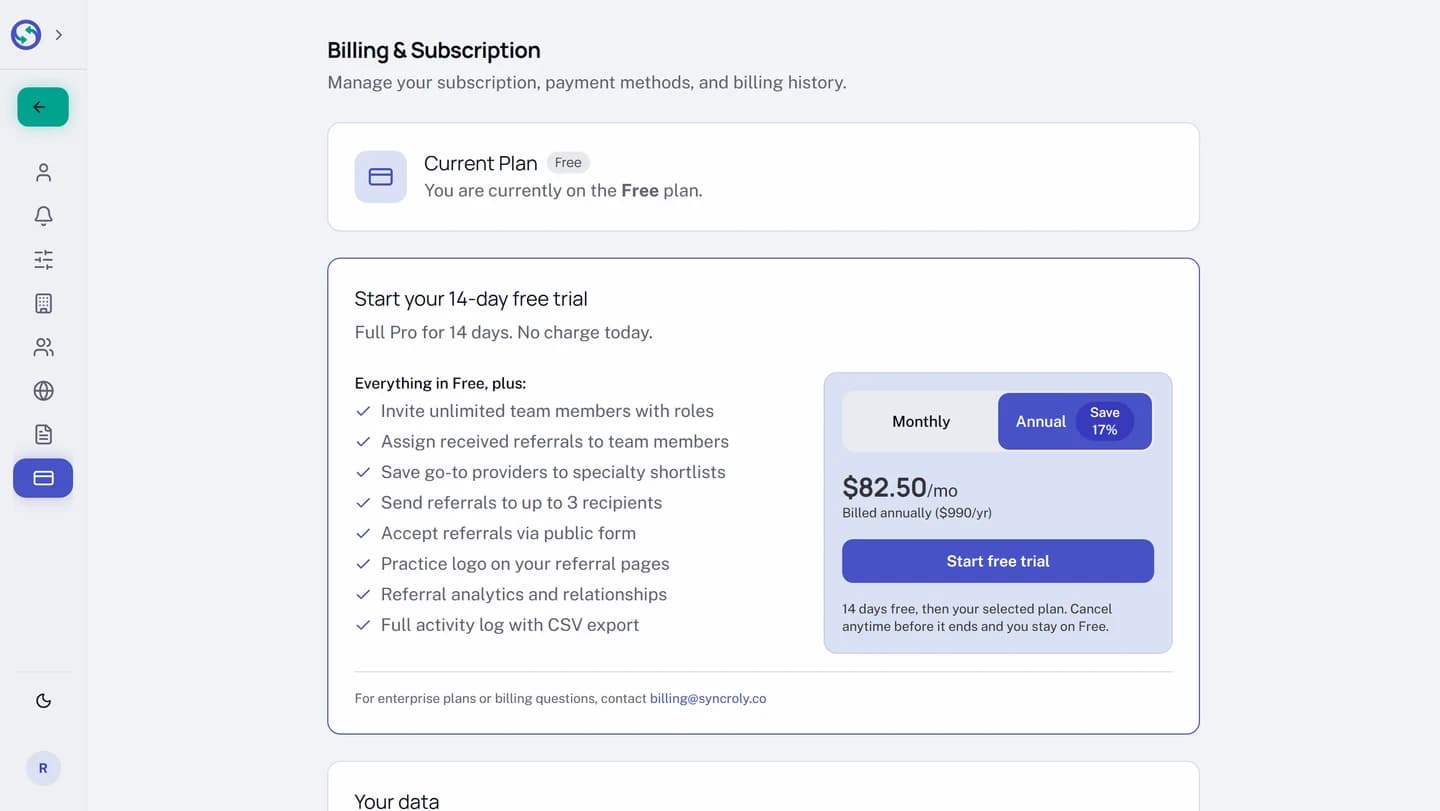
Start your free trial
Every practice can try Pro once, for 14 days, with nothing charged up front. The offer reads Start your 14-day free trial. If your practice has already used its trial, the same panel reads Upgrade to Pro instead.
- In settings, open
Billing & Plan. - In the
Start your 14-day free trialpanel, chooseMonthlyorAnnual. The annual price is markedSave 17%. - Select
Start free trial. - On the secure checkout page that opens, enter your payment details and confirm.
Checkout asks for a card, but nothing is charged that day. You get full Pro for 14 days, and the plan card reads Free trial with a Trial badge and a Trial ends date.
When the trial ends, the plan you selected begins and your card is charged. Cancel before the end date and your practice returns to Free, with nothing billed.
Upgrade to Pro
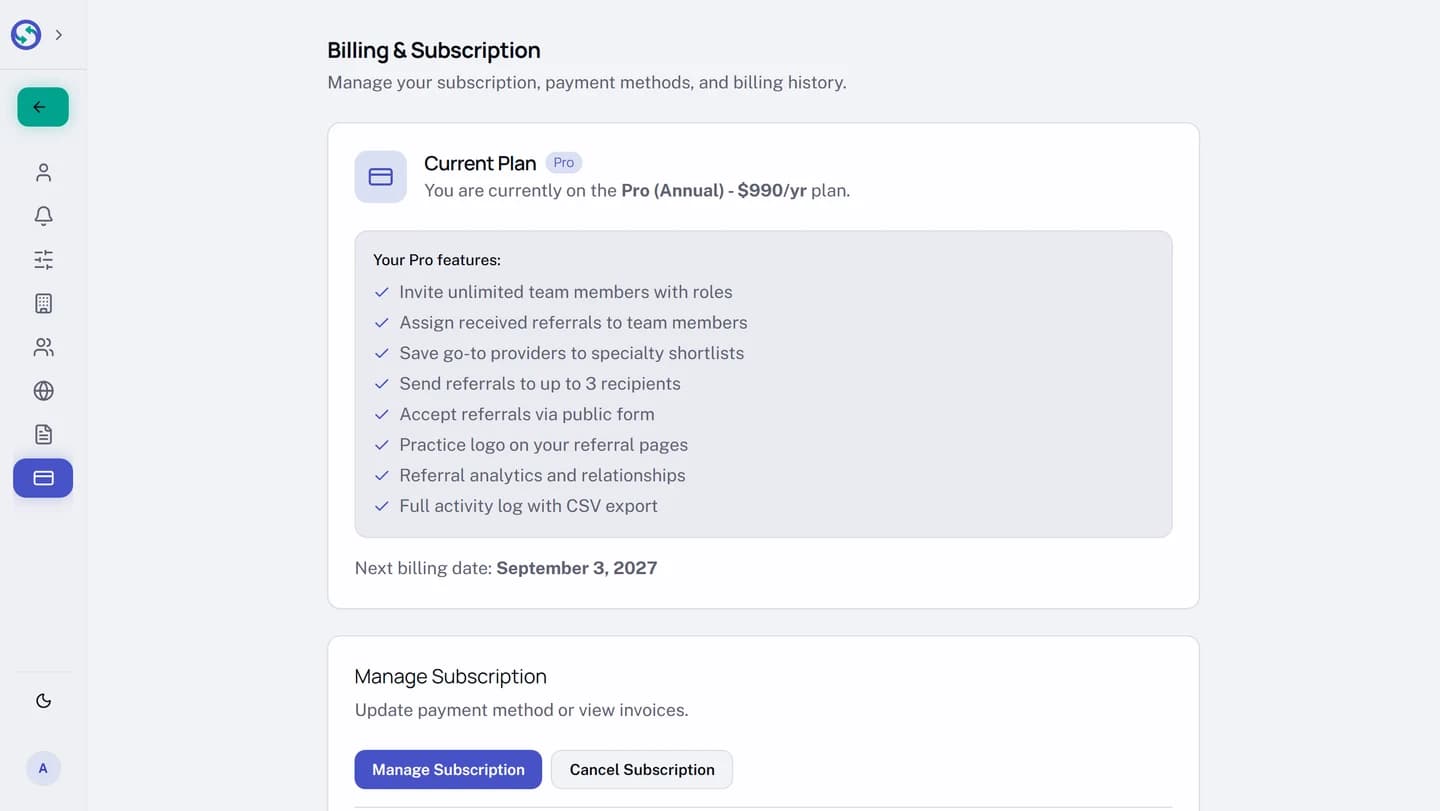
Upgrading works the same way as the trial: pick Monthly or Annual in the offer panel, select Upgrade to Pro, and complete checkout. Pro is active as soon as payment confirms. The Current Plan card then shows the Pro badge, your plan and price, and a Next billing date line.
Annual billing costs two months less than paying monthly for a year. If you start monthly, the billing page later offers Switch to annual and save two months.
Manage your subscription
On a Pro practice, Manage Subscription opens your billing portal, hosted by the payment provider Stripe. Update your payment method and view past invoices there; changes reach Syncroly on their own.
For anything the page does not cover, including enterprise plans, write to billing@syncroly.co.
Cancel, and what downgrading means
- In settings, open
Billing & Plan. - Select
Cancel Subscription. - Read the dialog, which lists what your practice loses: team members, pending invites, your public form, your logo.
- Select
Continue to Cancelto confirm, orKeep Proto back out.
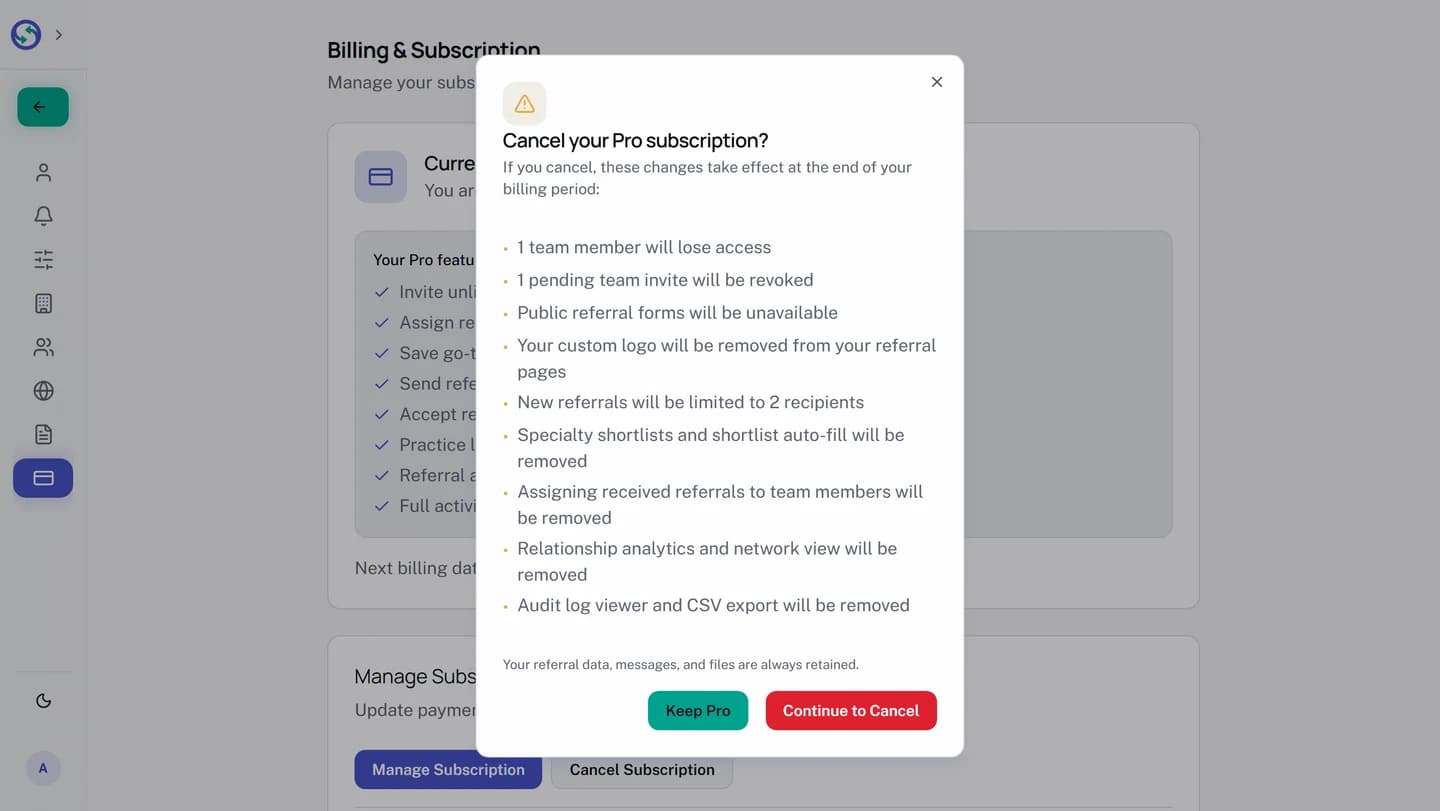
Canceling is not immediate. Pro continues until the end of the billing period you already paid for, and until then a banner shows the end date with a Resume Subscription button that undoes the cancellation.
Downgrading never deletes anything. Every referral, message, and file stays, and you keep sending and receiving on Free. What ends is access to the Pro capabilities: teammates lose access, the public form goes offline, and the Pro screens return to their locked previews.
Export your data
The Your data card sits on the billing page on every plan. Export downloads all of your practice data as a single JSON file, for your own records. Running it changes nothing about your account.
Why a screen says Pro
Four screens are Pro only: shortlists, Relationships, the activity log, and the public referral form. On a Free practice each shows a preview of the real screen behind an upgrade card naming what Pro unlocks there, with Upgrade your plan or the trial offer as the action, and the matching sidebar and settings entries carry a Pro badge.
Nothing is wrong with your account; the feature belongs to the Pro plan. The card links straight to Billing & Plan.