Find your way around
Everything in Syncroly is reached from one left sidebar on a desktop, or one menu button on a phone. Here is what each entry opens, what the Overview page is telling you, and where your account, settings, and help live.
On this page
Browse categories
The sidebar
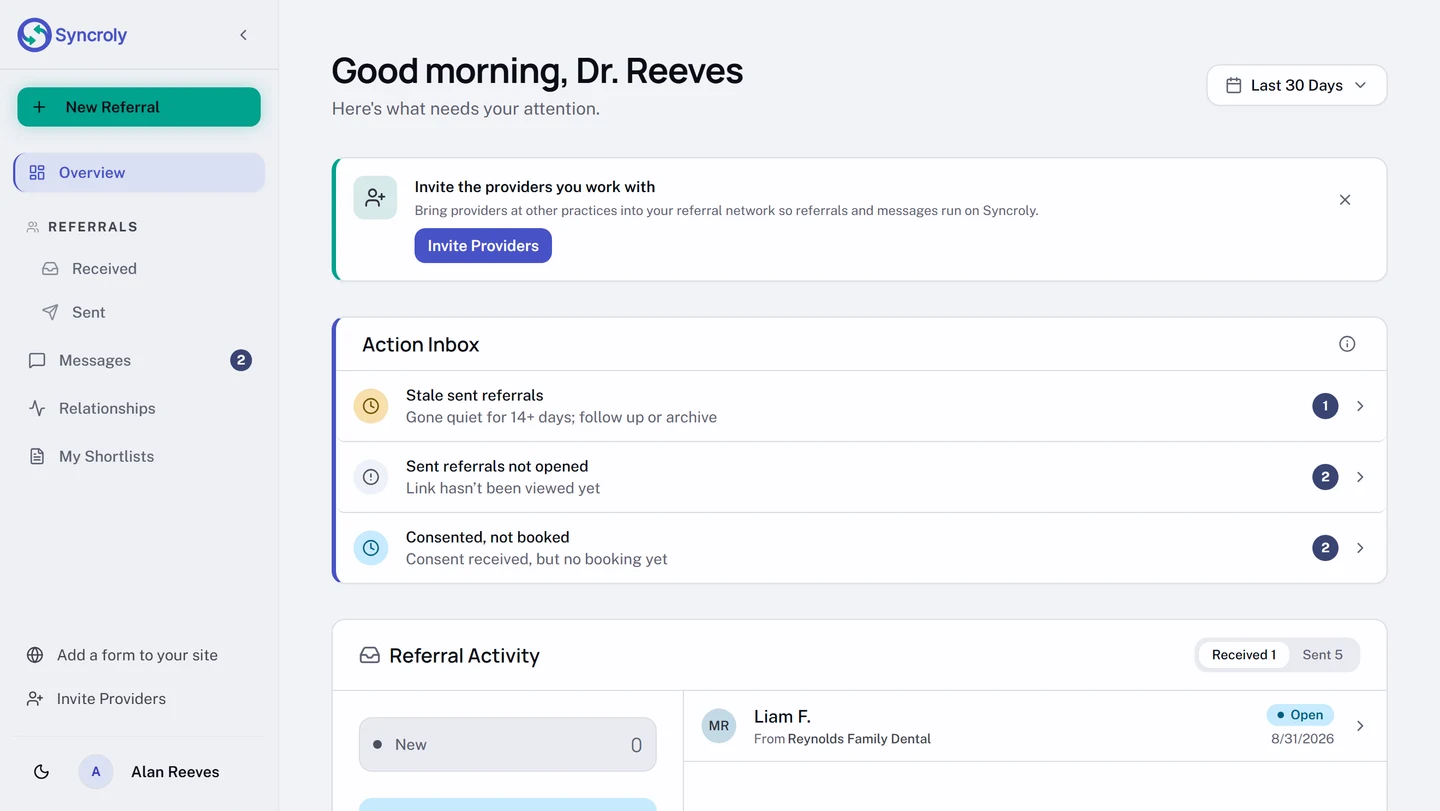
On a desktop, the left sidebar is the whole map. From the top:
New Referralstarts a referral. It is the one button that is not a page.Overviewis the page you land on after signing in.Referralsholds the two lists:Receivedfor referrals sent to your practice, andSentfor the ones you made. A number onReceivedcounts referrals you have not opened yet.Messagesholds every conversation, with a count of unread ones.Relationshipsshows which practices you refer to and which refer to you.My Shortlistsholds the providers you keep ready for each specialty.
Depending on your role and what your practice has set up, more entries sit below these: the public form entry, which reads Add a form to your site until your practice publishes a form and Public Referral Form after, and Invite Providers.
The arrow beside the logo collapses the sidebar to icons; select it again to expand it. On a narrower window it starts collapsed. Hover an icon to see its name.
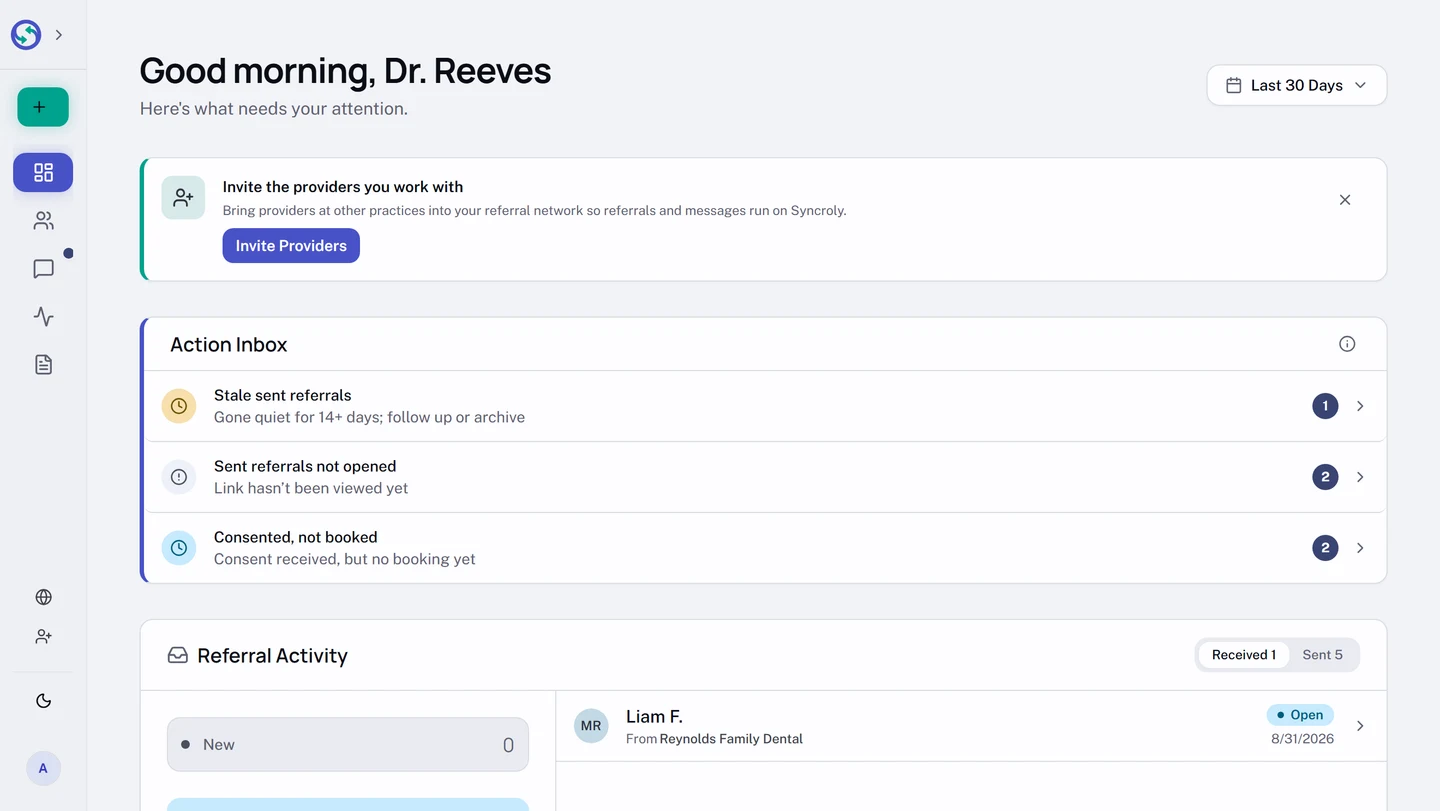
At the bottom of the sidebar, beside the theme switch, is your name. Select it to open the account menu: Settings, Help, About Syncroly, and Sign out. Help opens this help center in a new tab, so nothing you were doing is lost.
What Overview is telling you
Overview opens with a greeting and one control, a date range that reads Last 30 Days until you change it. The range applies to the activity counts on the page, not to the action list.
Action Inboxlists only the referrals that need someone to act, each row with a count. Select a row and the matching list opens already filtered to those referrals. When nothing is waiting, it says so instead of showing an empty list.Referral Activityshows counts by status for the range, with aReceivedand aSenttab, and the latest referrals under them. A link under each tab opens the full list.Relationshipslists the providers you refer to most underWho you refer to, and the ones who send to you underWho refers to you.My Shortlistsshows which specialties have a shortlist ready.
A reminder card can also appear above these, for example while your practice phone or website is still empty. Each one has a close control, and it stays dismissed.
On a phone
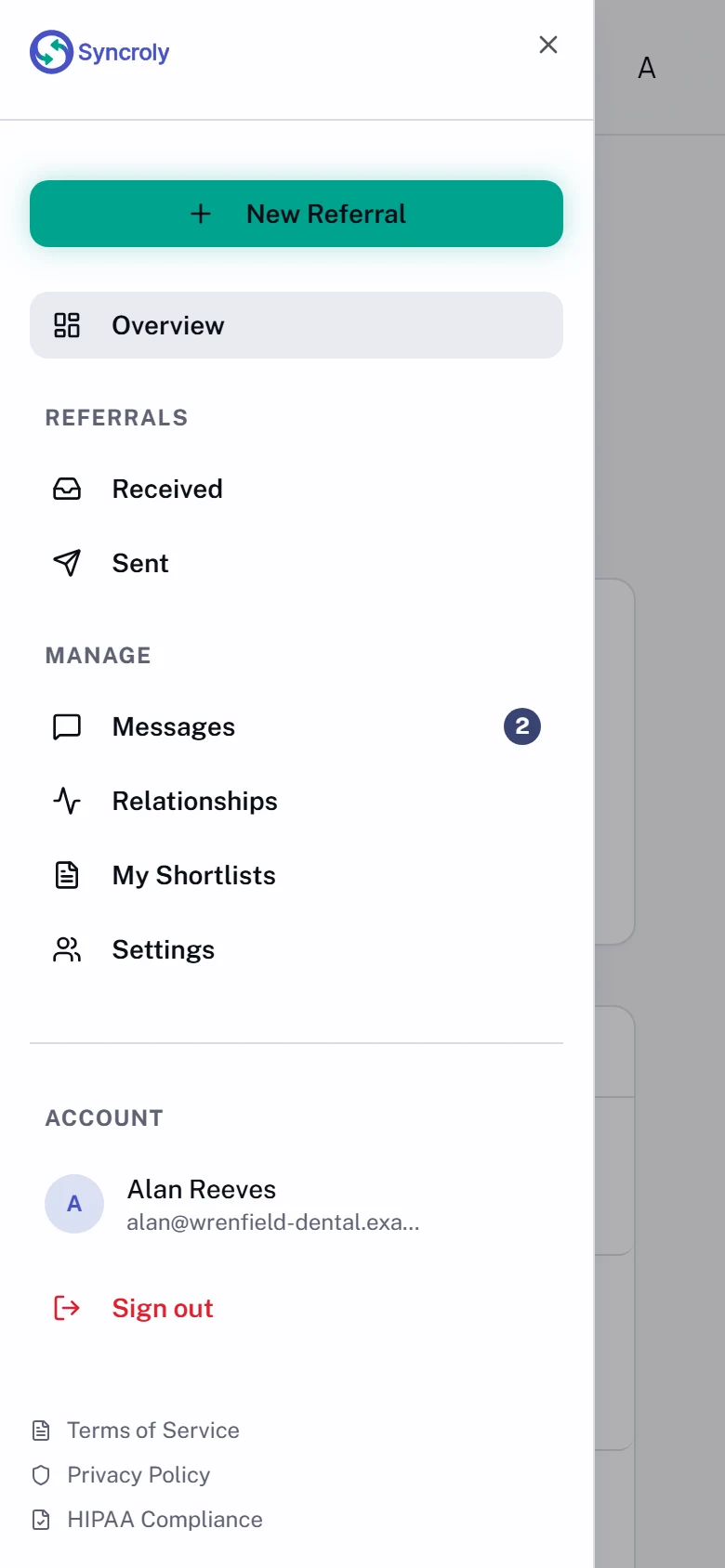
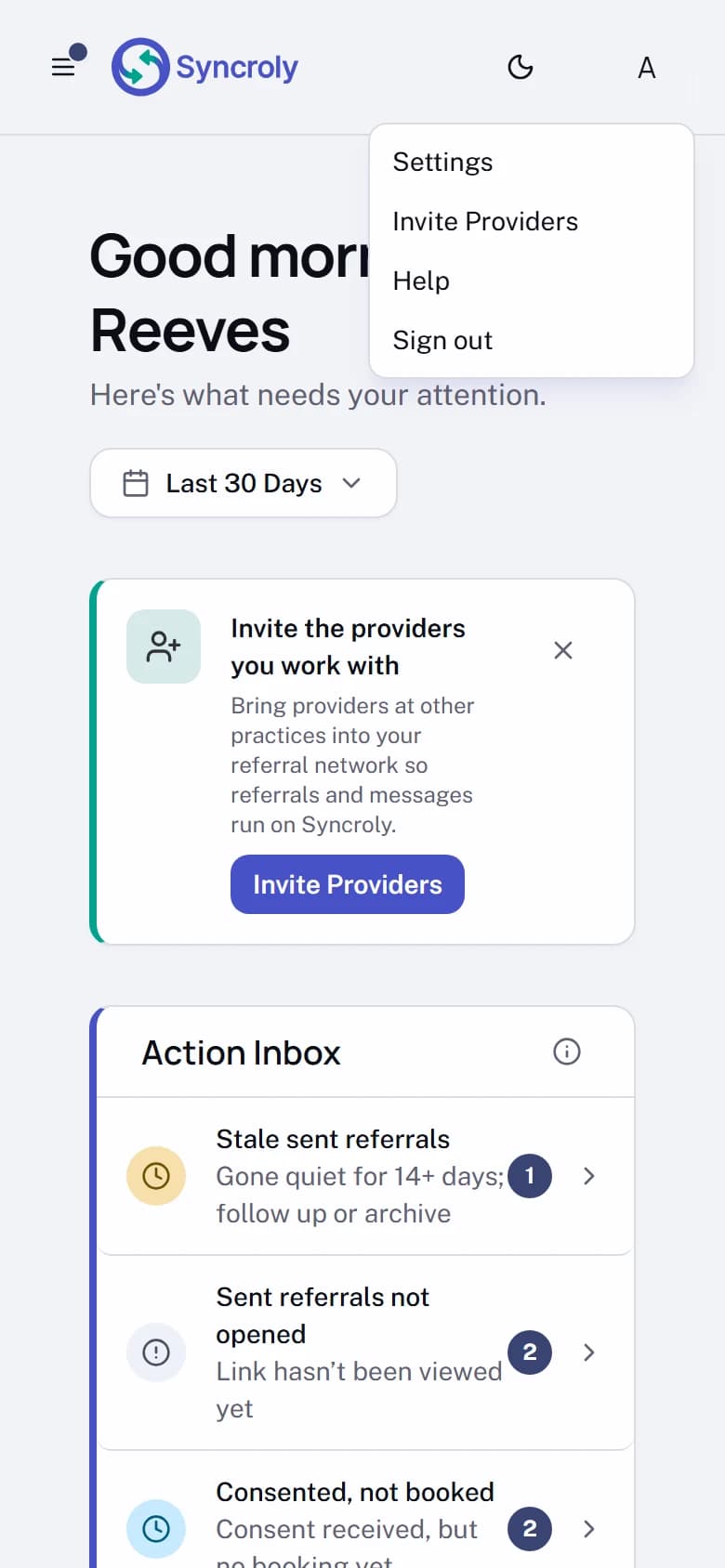
On a phone or a narrow window the sidebar is replaced by a bar across the top. The menu button at the top left opens a drawer with the same entries: New Referral, Overview, then Received and Sent under Referrals, then Messages, Relationships, My Shortlists, and Settings under Manage, and Sign out under Account. A dot on the menu button means a new referral or an unread message is waiting; open the drawer and the count sits on Received or Messages.
Your initial at the top right opens a shorter account menu: Settings, Invite Providers where your practice has it, Help, and Sign out. The page content is the same as on a desktop, stacked in one column.
Settings
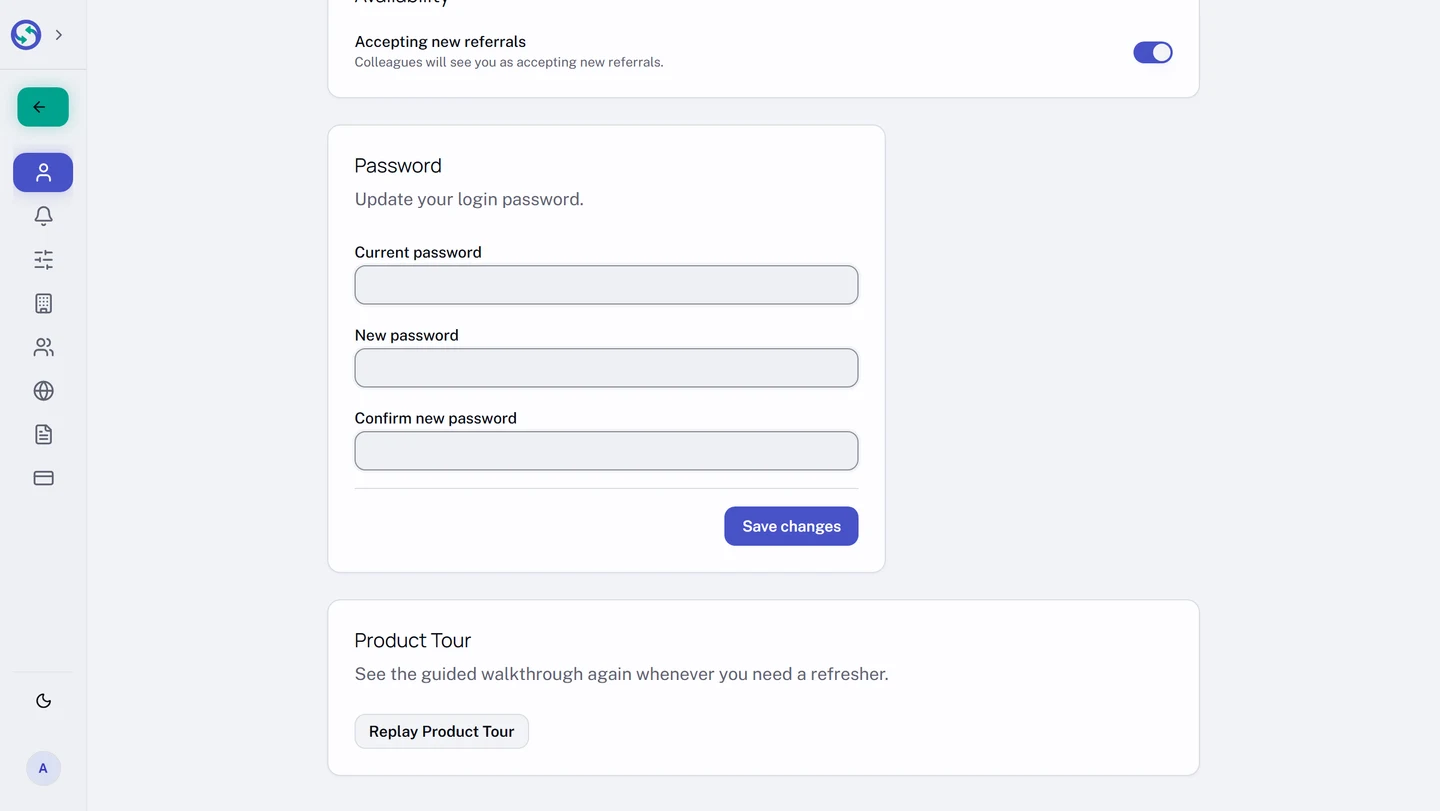
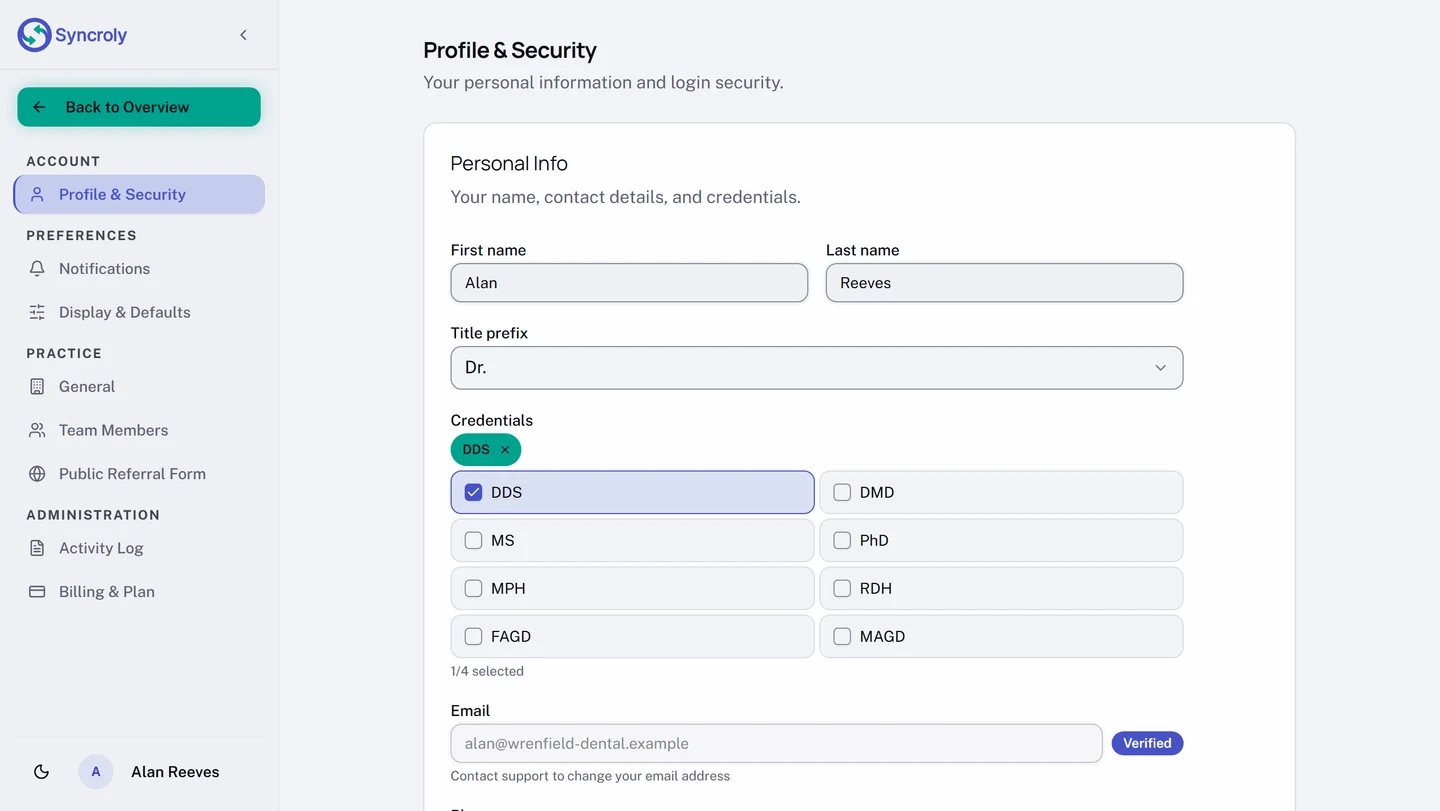
Selecting Settings from the account menu swaps the sidebar for a settings sidebar and opens Profile & Security. The entries are grouped: Account for your own profile and password, Preferences for Notifications and Display & Defaults, and, for an Owner or Administrator, Practice and Administration for the practice-wide pages. Back to Overview at the top returns you to Overview. On a phone, Settings opens a list of the same pages with a line describing each.
See the tour again
The first time you open Overview, a short tour points out the parts of the page. To see it again, open Settings, and on the Profile & Security page scroll to Product Tour and select Replay Product Tour. The tour runs the next time you open Overview.