Your received inbox, and finding a referral you can't see
The received inbox describes each referral from your practice's side, and its default view hides some referrals on purpose. Here is how to read the list, filter it, and track down a referral you were told to expect.
On this page
Browse categories
Reading the list
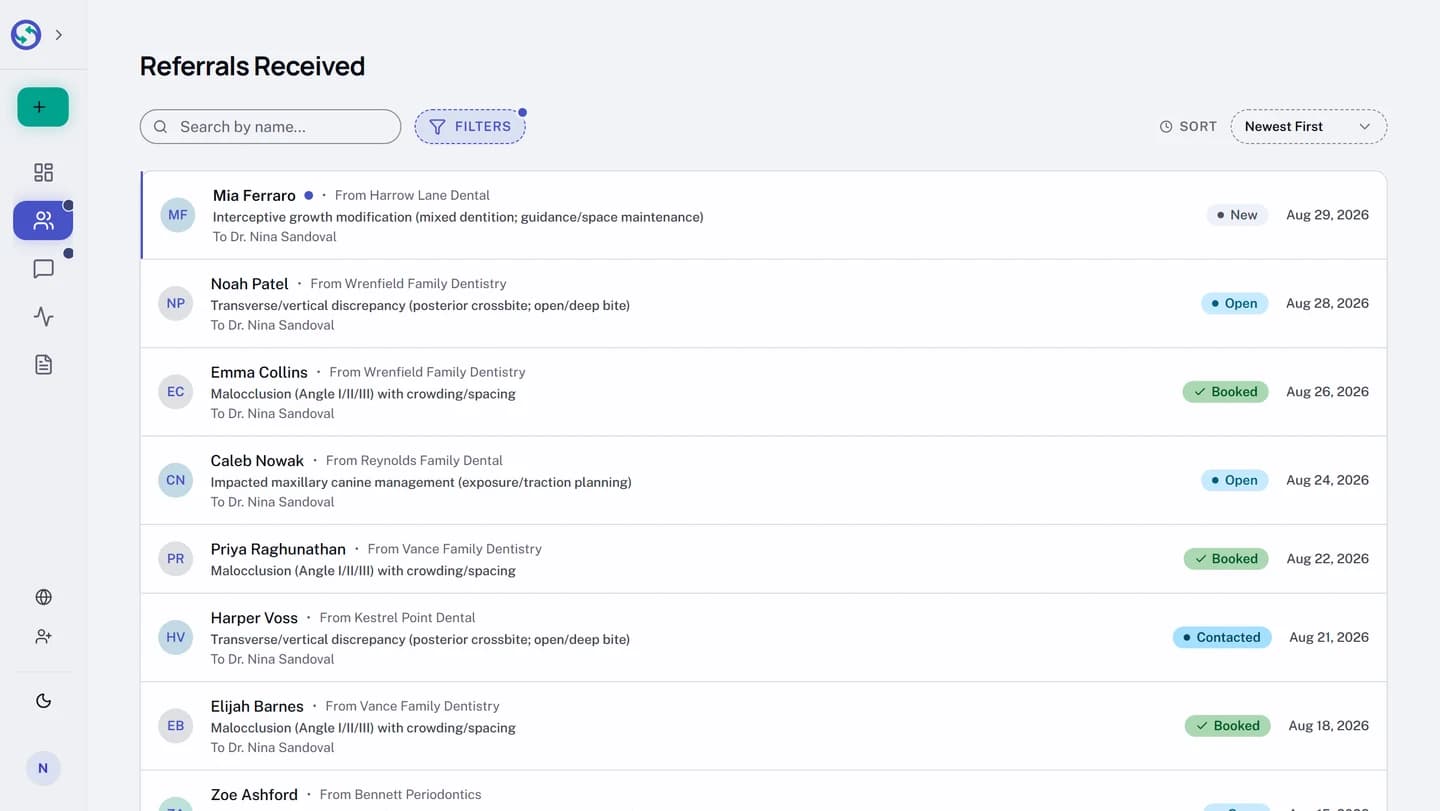
In the sidebar, open Received. Referrals sent to your practice land here in one list: each row shows the patient, the reason for the referral, which practice sent it, your practice's status for it, and the date it reached you. A row marked New is one nobody at your practice has opened yet, and the count on the sidebar's Received entry is the same number.
Opening a referral is what marks it as seen. There is no separate mark-as-read action.
A row may also carry a line naming who at your practice it is for: "To" a provider it was addressed to, or "Assigned to" a clinician your practice assigned it to. A referral addressed to a colleague by name stays new for them until they open it themselves, even if someone else at the practice has seen it.
The status words are yours, not the sender's
Both practices look at the same referral, but the sender tracks whether the patient acted while your inbox tracks what your practice has done. The sender's screen can say one thing while yours says another, and both are right.
Your side uses six words:
- New: nobody at your practice has opened it.
- Open: someone at your practice has opened it, and the next move is still yours.
- Contacted: your practice recorded that it reached out to the patient. Another practice's outreach never shows here.
- Booked: the appointment was booked with your practice.
- Booked elsewhere: the patient booked with another practice on the same referral. Contact details are withheld from this point; see Why you can't see the patient's details yet.
- Needs follow-up: the referral has had no activity for 14 days. It is a prompt to act, not a dead end: reaching out can still rescue it.
Filter and search
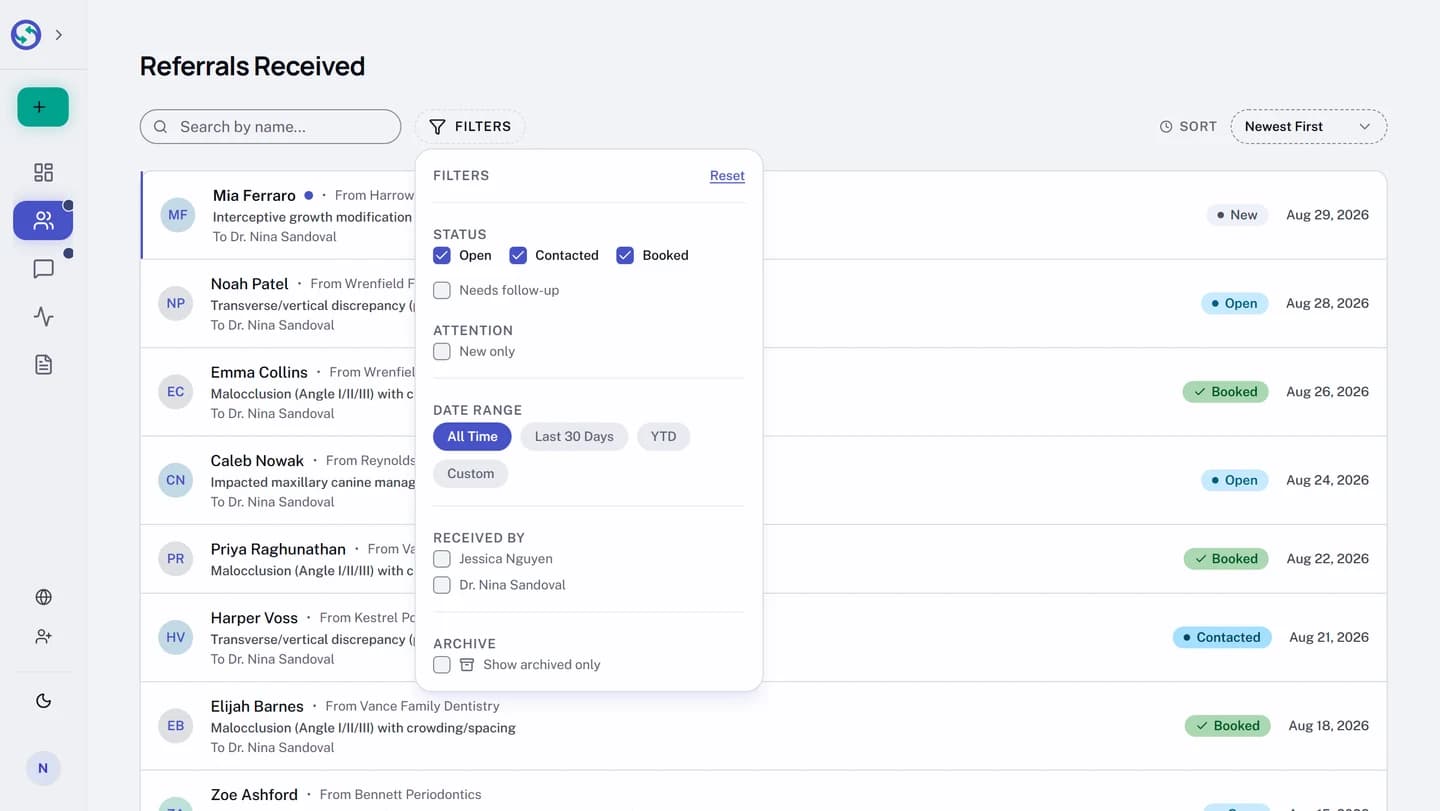
By default the list shows Open, Contacted, and Booked referrals. Referrals marked Needs follow-up are hidden until you ask for them, so a quiet referral does not crowd the working list.
- Above the list, select
Filters. - Under
Status, check or uncheckOpen,Contacted,Booked, andNeeds follow-up. The list updates as you change them. - Under
Attention, checkNew onlyto narrow the list to referrals nobody at your practice has picked up. This matches the sidebar count exactly. - Under
Date Range, chooseAll Time,Last 30 Days,YTD, orCustom. - Select
Resetto return every filter to its default.
The search box above the list matches the patient's name, not the referring practice. To find a referral by its sender, read down the rows: each one names the practice it came from.
Practices with more than one team member also get a Received by filter, for anyone whose inbox shows the whole practice. Checking a name narrows the list to referrals that person received.
The archived view
Archiving tidies a referral away without deleting anything. On a referral's detail page, the ... menu holds Archive; an archived referral leaves the active list and its detail page carries an archived notice, with Unarchive in the same menu.
- Above the list, select
Filters. - Under
Archive, checkShow archived only. The list switches to archived referrals, in every status.
In the archived view the Status boxes and New only do not apply: archived referrals show in every status, and an archived referral is never counted as new.
A referral you can't find
When someone tells you a referral was sent and your inbox disagrees, it is almost always one of four things. Work down the list:
- In
Filters, underStatus, checkNeeds follow-up. A referral that went quiet is hidden by the default view, not gone. - In
Filters, underArchive, checkShow archived only. Someone at your practice may have archived it. - Ask the referring practice whether it was a Choice referral. If the patient has not shared it with your practice yet, it is not in your inbox, and that is expected. Why you can't see the patient's details yet explains when it will arrive.
- Ask whether it was addressed to a colleague. If your practice keeps referrals visible only to the clinician they belong to (a practice setting called Inbox Visibility), or you have narrowed your own workspace to your own referrals, a colleague's referral will not appear in your list. Somebody with the whole practice inbox in view, usually your front desk, owner, or administrator, can tell you where it landed. Inbox visibility: who on your team sees what covers both settings.