See who you refer to and who refers to you
The Relationships page groups your referral history by who was on the other end: which practices and people you exchange referrals with, how often, and which relationships are going quiet.
On this page
Browse categories
What Relationships shows
In the sidebar, open Relationships. The page groups your referral history by who was on the other end, giving you one row per practice or person: how many referrals you have exchanged, when the last one moved, and whether the relationship is active or cooling off.
Every role can open it, and what it counts follows your referral visibility: a practitioner whose practice keeps the default inbox visibility, or anyone who has narrowed their own workspace to their own referrals, sees relationships built from their own referrals only. Everyone else sees the whole practice. See Inbox visibility: who on your team sees what.
Two directions, two groupings
Four controls above the table decide what you are looking at:
ReceivedandSentswitch direction: who refers to you, versus who you refer to.PracticesandPeopleswitch grouping. Practices answers "which offices do we work with"; People breaks that down to the individual providers.- The time range offers
7 Days,30 Days,90 Days,YTD, andAll Time, with30 Daysas the default. Everything on the page, including the counts, recalculates for the range you pick. - The search box,
Search name or practice, narrows the list to a name you type.
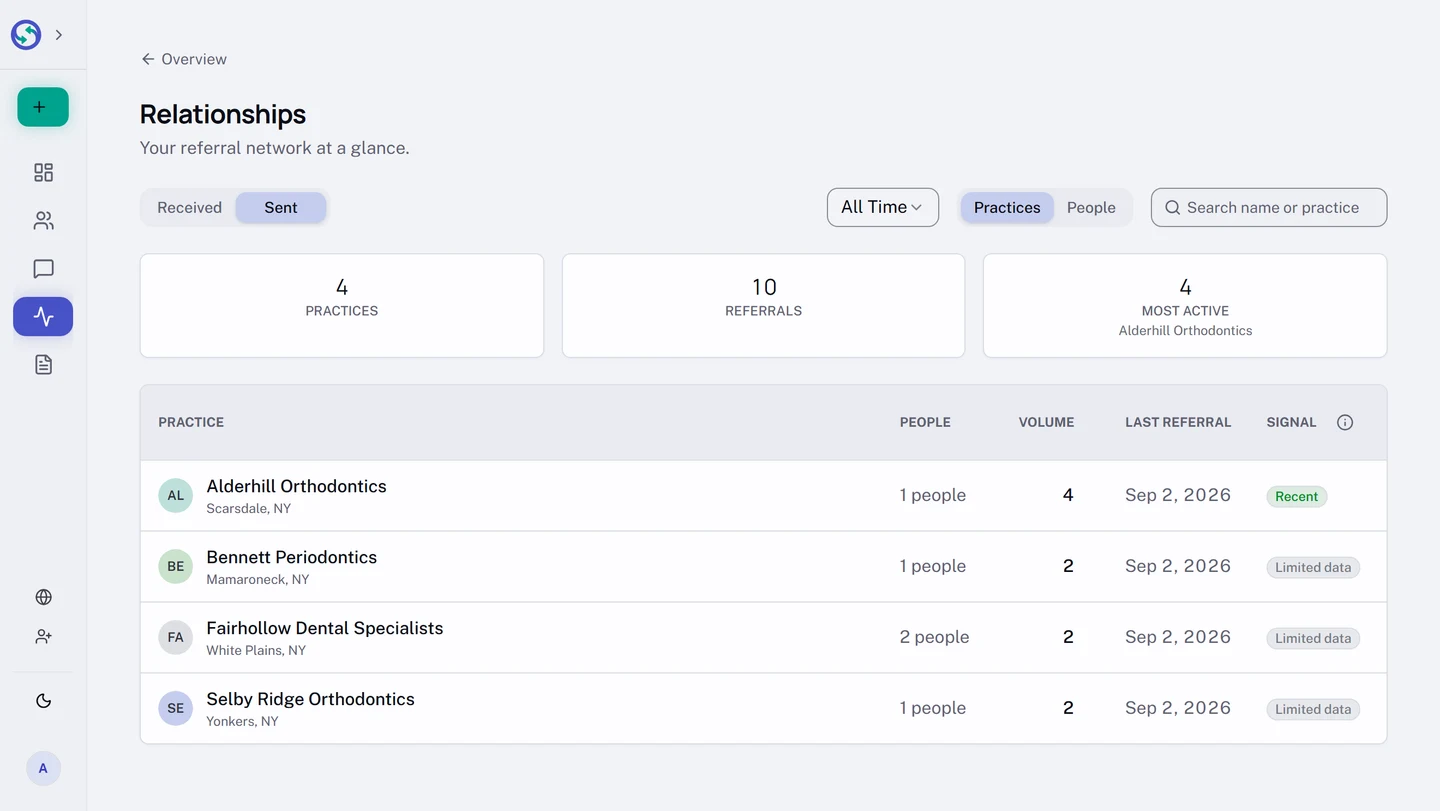
Three cards above the table summarize the current view: how many practices or people it holds, the total referrals among them, and who is most active.
Reading the table
Each row is one relationship. Volume counts distinct referrals with that practice or person inside the selected range, so one referral never counts twice however many messages rode on it. The date column is Last referral on the sent tab and Last delivered on the received tab. On the Practices grouping, a People column shows how many individual providers the volume is spread across.
The last column, Signal, is a one-word read on the relationship.
What Signal means
The signal compares how much history a relationship has with how recently it moved:
Recent. An active relationship: 3 or more referrals, the latest within 30 days.Quiet. Slowing down: 3 or more referrals, but none in the last 30 days.No recent activity. Gone cold: 3 or more referrals, but none in 90 or more days.Limited data. Too early to tell: fewer than 3 referrals so far.
The Signal column header carries a What signals mean info button with the same definitions. A relationship that has turned Quiet is one to follow up on before it reads No recent activity.
Drill into a relationship
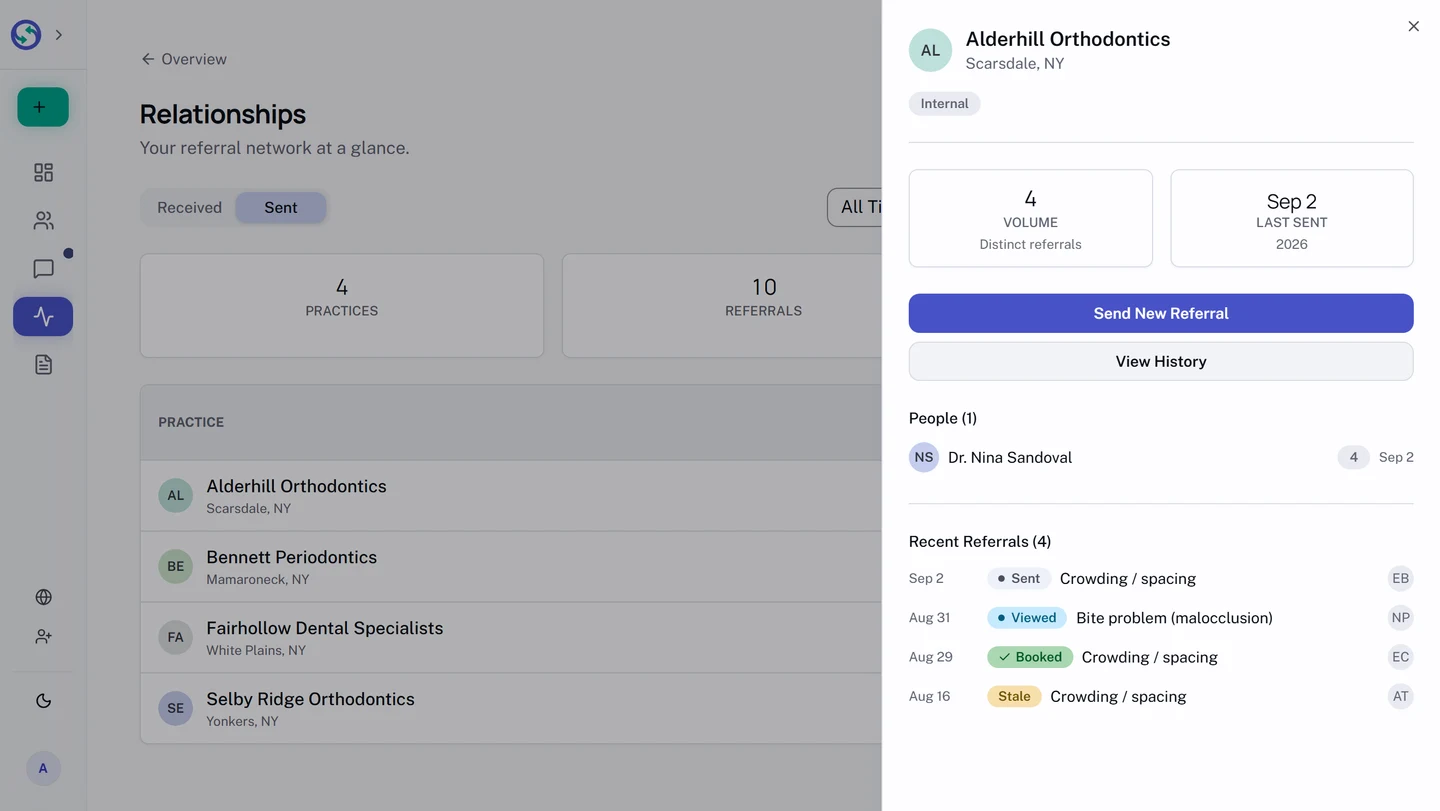
Select any row and a panel opens on the right with that relationship on its own: the volume and last-activity stats, badges such as Internal for a practice or provider on Syncroly, and the referral history behind the numbers.
The panel also carries the next step. On the received tab, View Referrals opens your received list. On the sent tab, View History opens your sent list, and roles that can create referrals also get Send New Referral, already pointed at that provider.