Publish a public referral form
A public referral form lets other practices refer to you without an account, through a link or a form on their website. This is where you turn it on, and what to check when a form will not go live.
On this page
Browse categories
What a public referral form is
A public referral form is a page that anyone can use to send your practice a referral, without a Syncroly account. A referring practice fills in the same fields your team fills in, and the referral arrives in your received inbox with the tracking every other referral has.
There are two separate ways to reach the form, and they are turned on independently: a Direct Link you can share anywhere, and a Website Embed that puts the form on your own site. You can run either one, or both.
Open the public form settings
Only an Owner or Administrator can open these settings.
- In the settings sidebar, under
Practice, selectPublic Referral Form. - Read the state at the top of the page.
A form you have never turned on starts in draft, accepting nothing.
Turn the form on
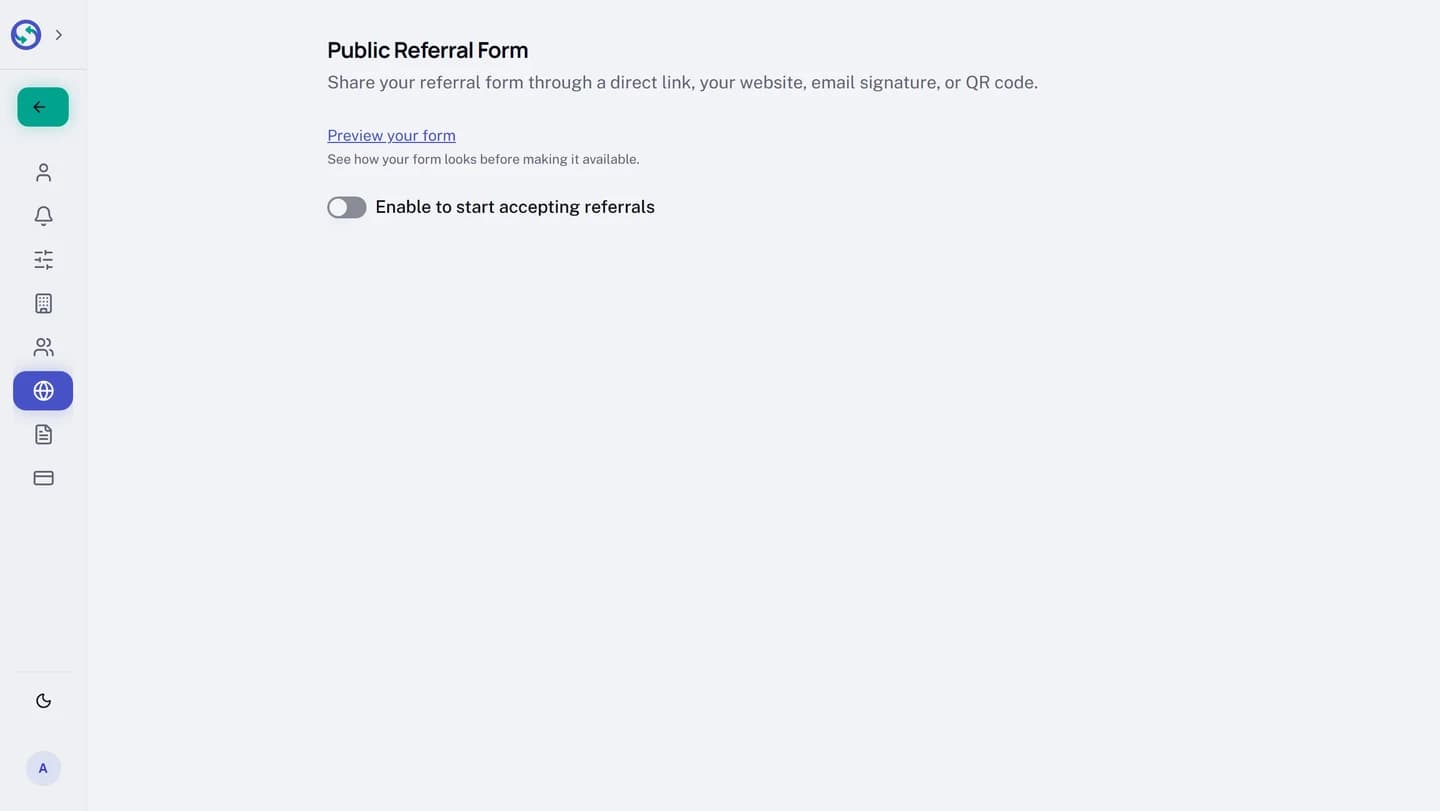
A draft form shows Enable to start accepting referrals with a switch, and a Preview your form link so you can see it first. Turning the switch on publishes it. The switch then reads Your form is live and accepting referrals and the badge beside it reads Enabled.
Publishing also needs at least one of the two access surfaces on, since with both Direct Link and Website Embed off there is no way to reach the form. A live form refuses an edit that would turn both off.
The direct link and the website embed
The Direct Link card holds a link that anyone can open to refer to your practice. Use Copy to put it on your clipboard, or Open to see the live page. Share it in an email, a message, or anywhere a link works.
The Website Embed card puts the form directly on your own website, so a referring practice never leaves your site. Setting that up has its own steps, including the domains the form is allowed to load on. See Put your form on your website.
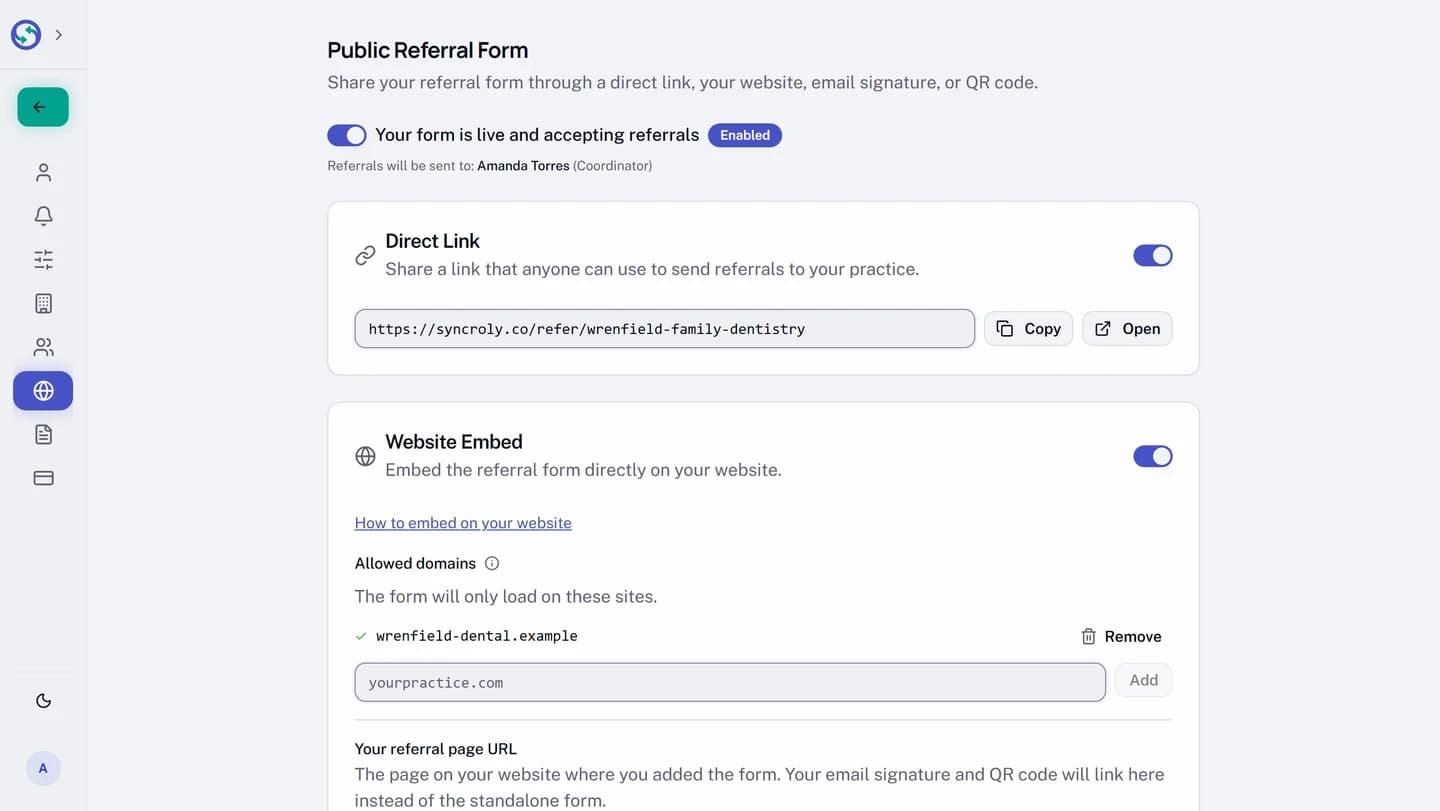
Below the two access cards, the Email Signature and QR Code cards turn the same link into a signature line and a printable code. Those are covered in Add a referral link to your email signature.
Who receives what comes in
When a form is live, the settings page names who will be notified of each submission, on a line that reads Referrals will be sent to: followed by the teammates. Every submission lands in your received inbox for the practice to triage, the same as a referral sent to you directly.
When a live form stops working
A published form serves only while your account is active. If the account is deactivated, the form stops accepting submissions and anyone who opens the link or the embed sees an unavailable message.
You can also turn the form off yourself. Switching it off asks you to confirm, then anyone with the link or embed sees the unavailable message until you turn it back on. The Disabled badge shows while it is off.