Add a referral link to your email signature
You can turn your referral form into a link for your email signature, and a QR code for print. This guide covers editing the wording, copying it in, and opening the setup steps written for your practice.
On this page
Browse categories
Before you start
The signature link and the QR code both point at your public referral form, so the form has to exist and be reachable first. If you have not set one up, start with Publish a public referral form. The Email Signature and QR Code cards appear once the form can be reached, either through its direct link or through a page you embedded it on.
Find the signature and QR cards
- In the settings sidebar, under
Practice, selectPublic Referral Form. - Scroll to the
Email Signaturecard, with theQR Codecard below it.
Set the wording and copy the link
The Email Signature card shows a live preview of the link the way it will read. The wording is set under Link text. Change it and select Save to keep it, or Reset to default to go back to the suggested wording.
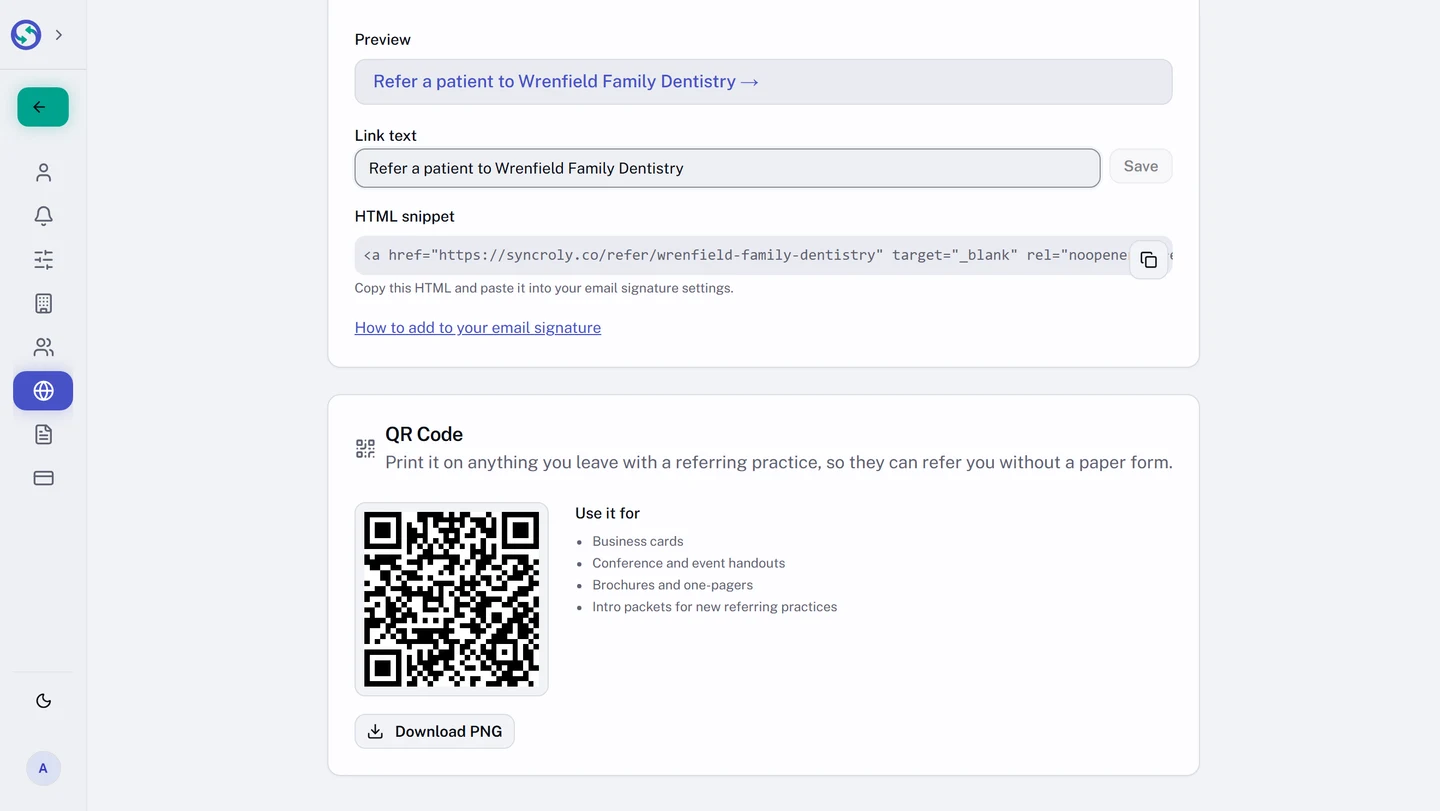
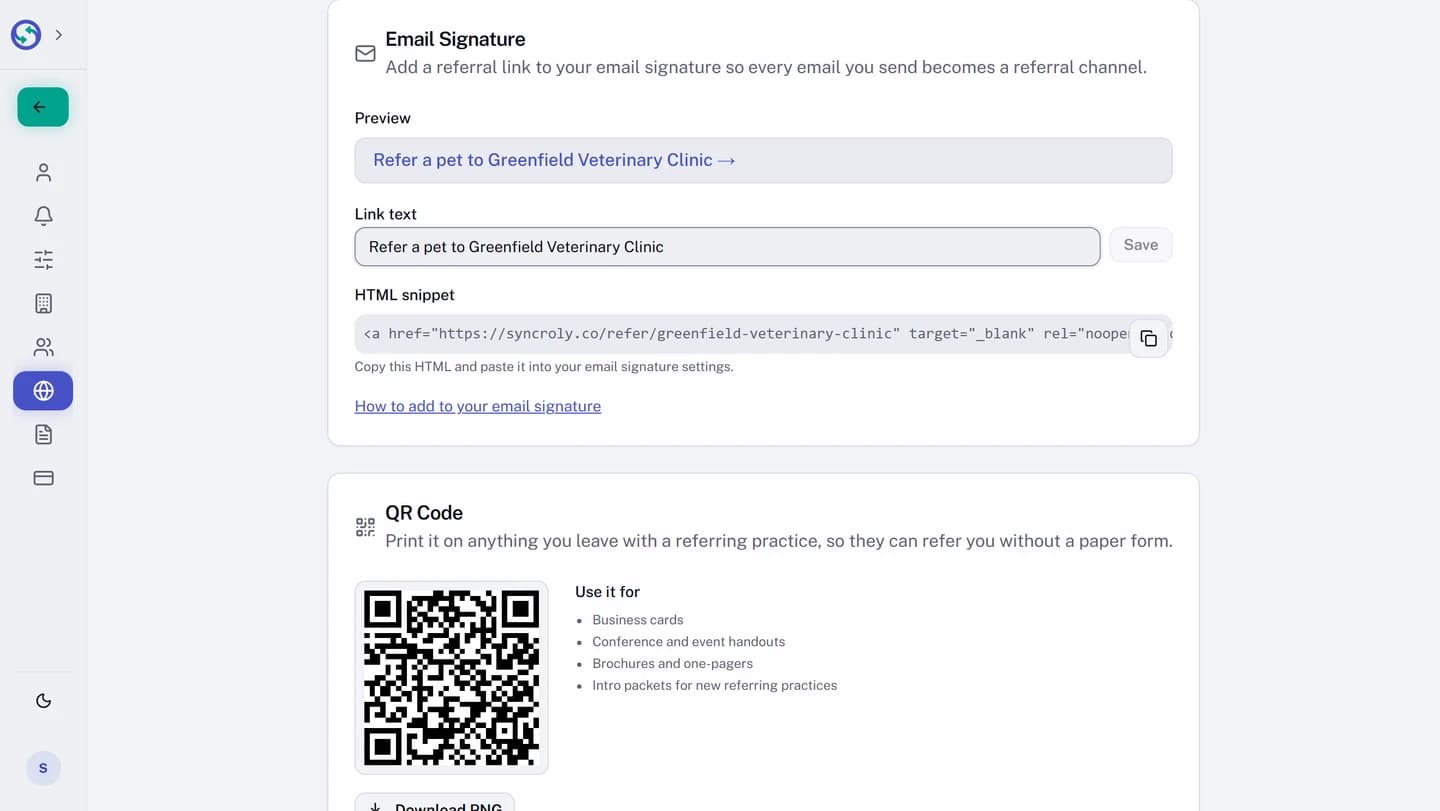
Below the preview is the HTML snippet. Copy it and paste it into your email signature settings in your mail program, as the card says: Copy this HTML and paste it into your email signature settings. Pasting the HTML keeps the link styled rather than showing the raw code.
Open the instructions written for your practice
The card carries a link, How to add to your email signature, that opens a page written for your own link, with steps for common mail programs. It is tied to your account, so it opens only from this card, in a new tab, and only for an Owner or Administrator. There is no public address for it.
Download a QR code for print
The QR Code card shows a code that opens the same referral form when scanned. Select Download PNG to save it, then print it on business cards, handouts, or anything you leave with a referring practice.