Set up your practice profile
The details you enter for your practice are what patients and other practices see on a referral: your name, phone, website, address, and logo. Here is where each one is set, and where your own name and credentials come from.
On this page
Browse categories
Where the practice profile lives
Practice details are edited by the practice Owner or an Administrator. Other roles do not see the page.
- At the bottom of the left sidebar, select your name to open the account menu.
- Select
Settings. - In the settings sidebar, under
Practice, selectGeneral.
On a phone, open the menu at the top left, select Settings, and then select General under Practice. Either way you land on the Practice page, with Practice Details at the top.
Name, phone, website, and address
The Practice Details card holds the practice as other people see it. Practice name is how your practice appears in search results and on every referral you send or receive. Practice Phone and Website appear on the referral page a patient opens, so a patient who was referred to you can call or look you up without asking anyone. The Practice Address is the point your own provider searches measure distance from.
- In
Practice Details, fill inPractice name. - Fill in
Practice Phone. It must be a U.S. number. - Fill in
Website. - Under
Practice Address, start typing inStreet addressand select the matching suggestion.City,State, andZIP / Postal codefill in from it, and you can correct any of them. - Select
Save changes.
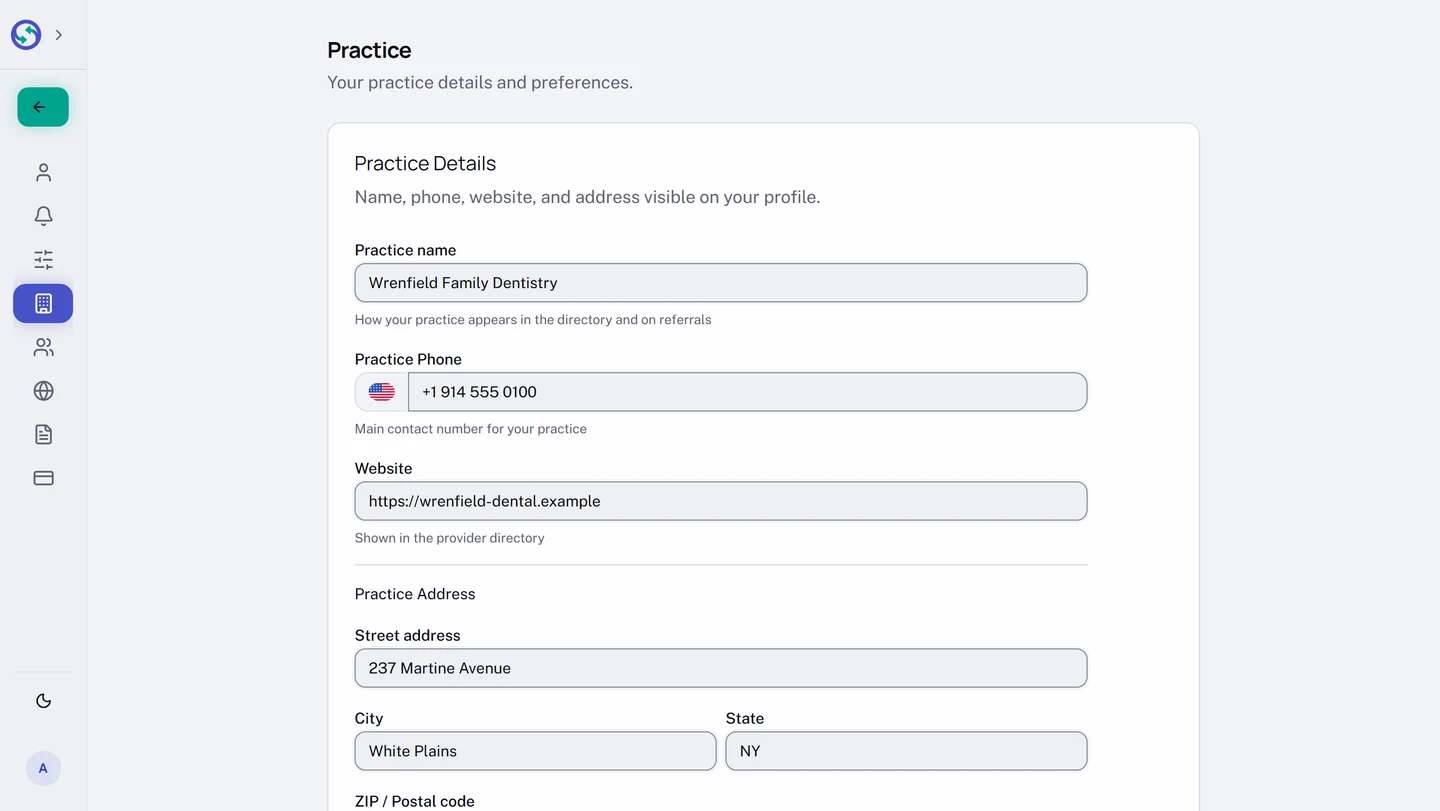
Until the phone and website are filled in, your Overview shows a reminder card that links back to this page. Filling both in, or dismissing the card, clears it.
Add your logo
The Practice Logo card sits below the details. It appears at the top of the referral page a patient opens from you, and on your public referral form. It takes a PNG, JPG, or WebP file up to 5 MB.
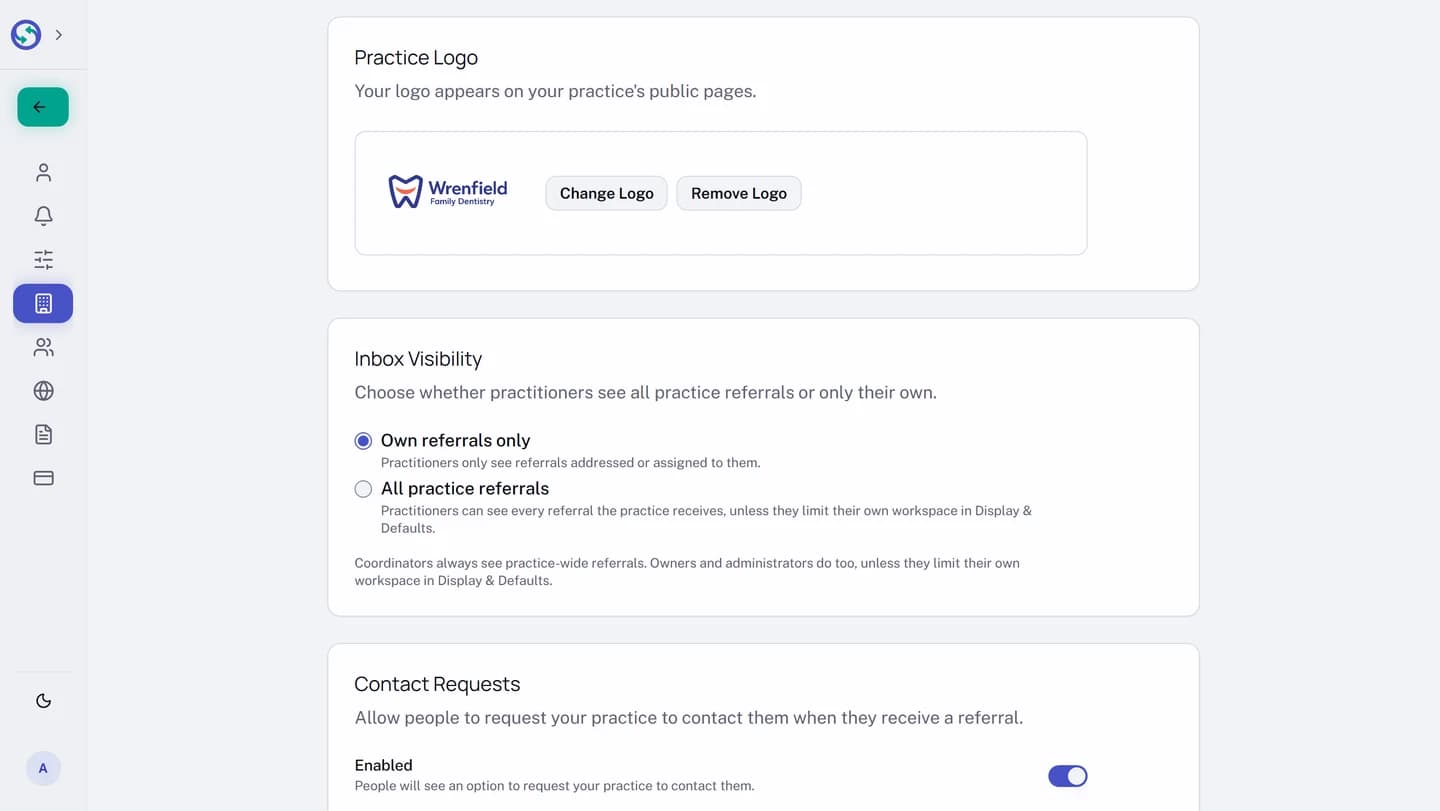
- In
Practice Logo, drop an image file onto the upload area, or select the area to pick a file. If a logo is already there, selectChange Logoinstead. - In the
Adjust your logodialog, drag the image to reposition it and use the slider to zoom. - Select
Save.
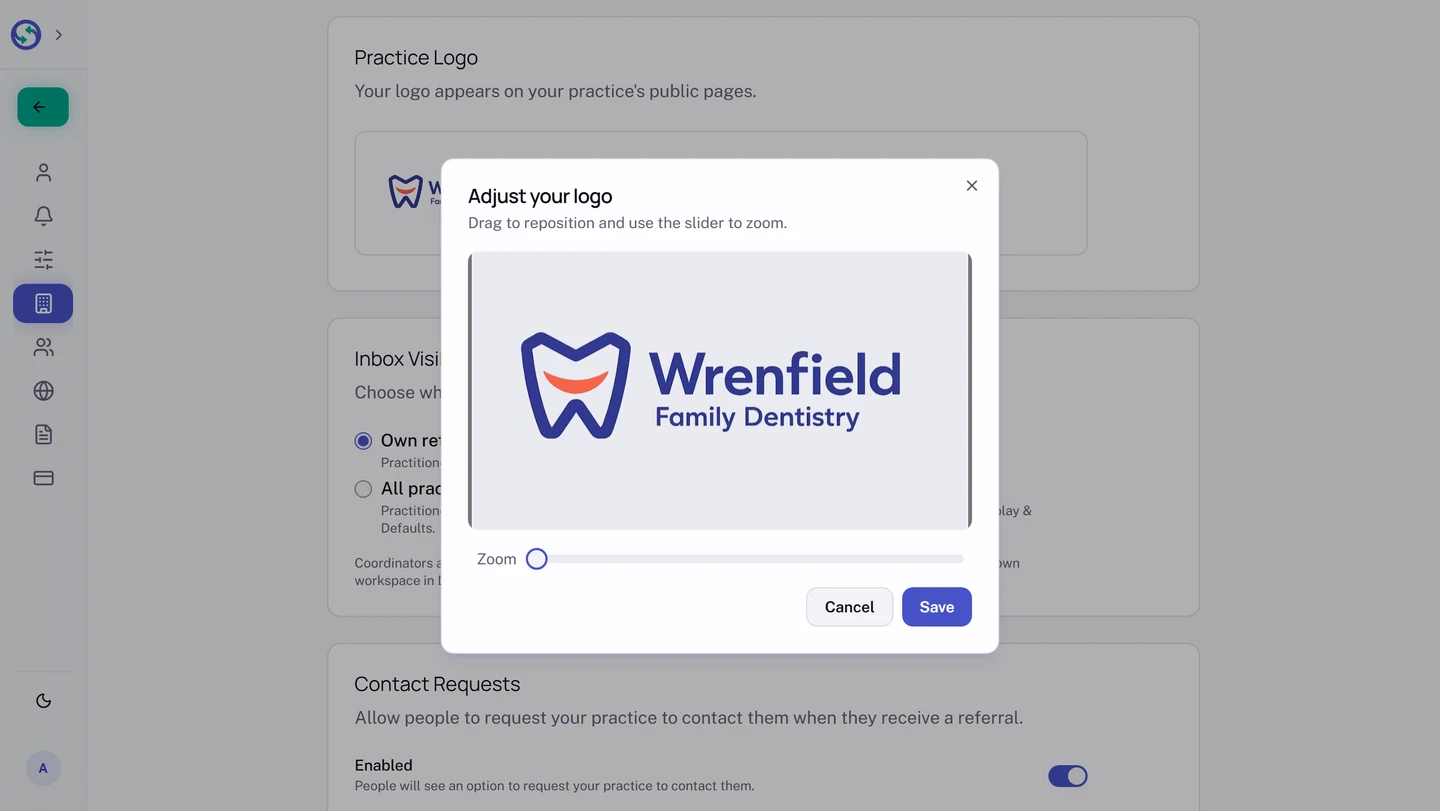
To take a logo down, select Remove Logo and confirm with Remove. The pages that showed it go back to showing your practice name alone.
Your own name, title, and credentials
The practice page holds the practice. Your own name, the Dr. in front of it, and your credentials come from your personal profile, and every member of the practice sets their own.
- In the settings sidebar, under
Account, selectProfile & Security. - In
Personal Info, checkFirst nameandLast name. - In
Title prefix, chooseDr.,Prof., or leave it blank. - In
Credentials, check up to four from the list for your field. - Select
Save changes.
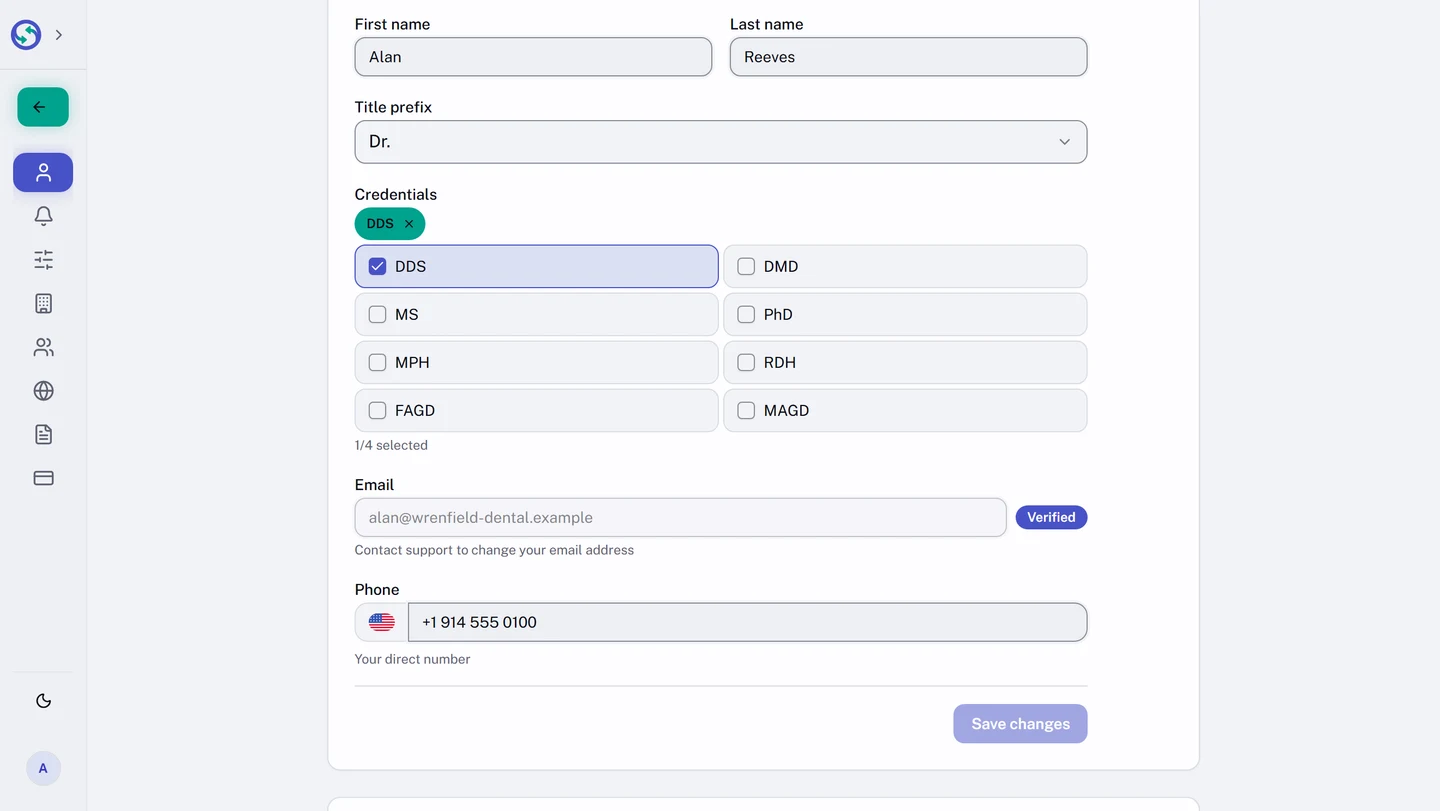
Where your name shows decides how much of this appears. A patient sees the prefix, your name, and your credentials on their referral page and in the email addressed to them. Colleagues in the app see the prefix and your name: in the recipient picker, on referral cards, and in messages. Credentials appears only for a clinician; a coordinator or an administrator without a clinician profile does not see it.
Your sign-in email is shown on the same card but cannot be edited here. Contact support to change it.
Below Personal Info, the Availability card carries Accepting new referrals. Switching it off marks you Unavailable in the recipient picker other practices use, and your own row cannot be added while it is off. Referrals addressed to your practice, and referrals already sent to you, are unaffected.
The rest of the practice page
The other cards on the Practice page:
Contact Requests is a switch. While it reads Enabled, a patient who receives a referral to your practice sees an option to ask your practice to contact them. Switch it off and the option disappears; the patient can still share the referral with you.
Inbox Visibility decides whether the practitioners on your team see every referral the practice receives or only the ones addressed or assigned to them. Inbox visibility: who on your team sees what walks through the choice.
If your practice accepted a Business Associate Agreement during setup, a card names who accepted it and on what date, with a link to the agreement text.
Your data holds the practice export, which Audit log and data export covers.
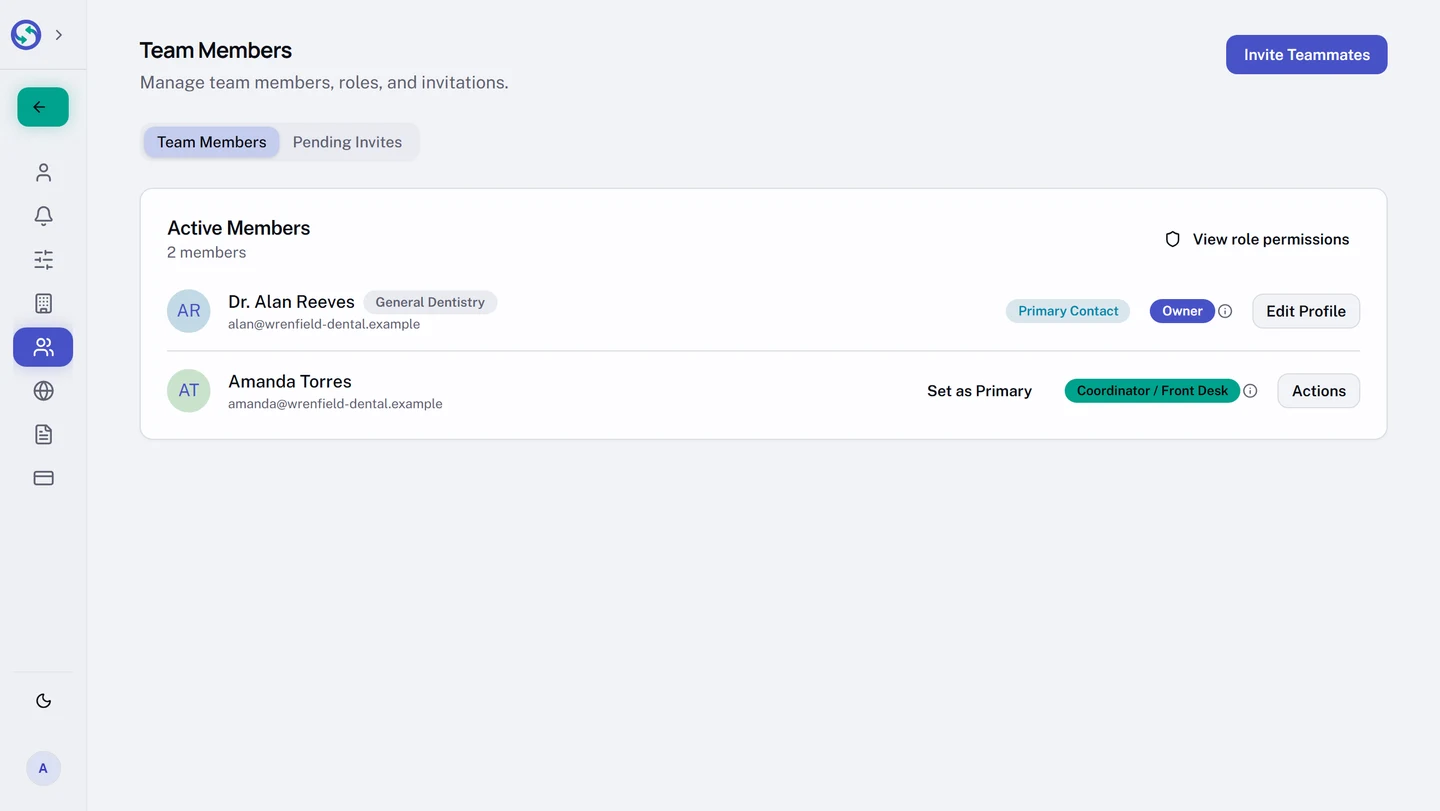
One practice detail is set elsewhere. The person another practice reaches when it contacts yours about a referral is the Primary Contact, marked on the Team Members page under Practice. Set as Primary on a teammate's row moves it; Add your team and choose roles covers the page.