Shortlists
A shortlist is your set of preferred providers for a specialty. Load it into a new referral in one press instead of searching for each recipient.
On this page
Browse categories
What a shortlist is
A shortlist is your own list of the providers and practices you refer to most, kept per specialty. When you start a referral in that specialty, one press of Load Shortlist adds them as recipients in the order you saved, so a routine referral does not need a search.
Open your shortlists
- In the sidebar, select
My Shortlists. - Under
Specialty, choose the specialty whose shortlist you want to work on.
Each specialty in your category has its own shortlist, so the specialty you pick decides which list you are editing. A general-category account does not have shortlists, and does not see this screen.
Add providers and set the order
Use the Add to this shortlist search to find a provider or practice and add it to the specialty you are on. A specialty shortlist holds up to 10 providers.
The order decides who loads into a referral first, so drag a row to move it. The first three sit under Auto-included (Top 3): when a Choice referral has all three recipient slots open, Load Shortlist fills them with exactly these. Everything below sits under More options and loads only when a slot is still open after the rows above it. To take a provider off, use the row control to remove it from the shortlist.
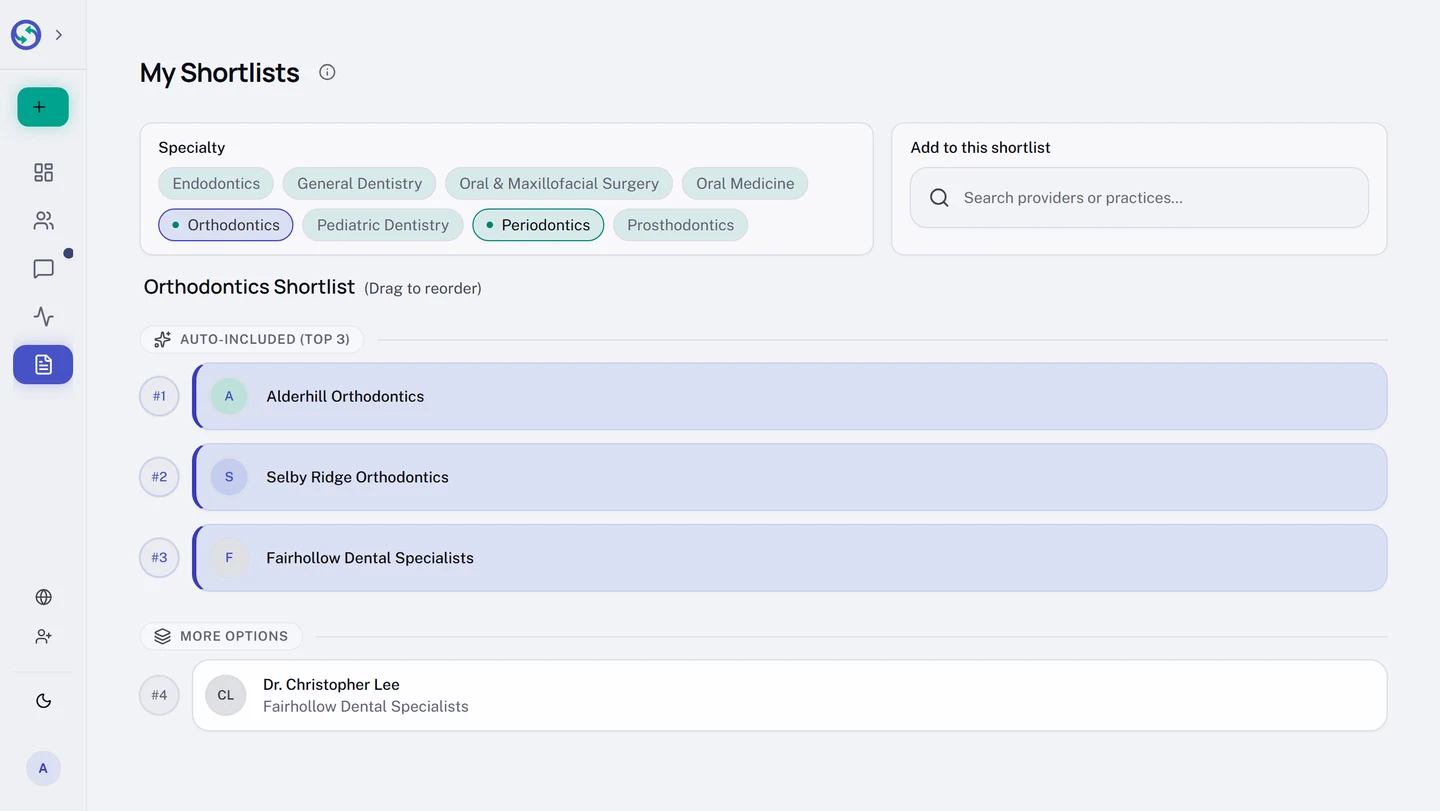
If your practice has set default providers for a specialty, they appear in the list as read-only entries alongside yours, managed for the whole practice rather than edited here.
Use a shortlist in a referral
When you create a referral and choose a specialty, select Load Shortlist beside the recipient search box. It fills the open recipient slots from the top of your list for that specialty, in order, and skips anyone already on the referral. A Direct referral has one slot, so it takes your first row. Nothing is added until you select the button, and changing your shortlist order changes who loads first.