Add recipients, including providers not yet on Syncroly
The recipient picker on the referral form searches every provider and practice on Syncroly, keeps shortcuts for the ones you use most, and takes a name and an email address for anyone it cannot find. Here is how each path works.
On this page
Browse categories
Where recipients live on the form
The Recipients block sits below the specialty on the referral form. Until you pick one it reads Select a specialty to add referral recipients., because the search and the shortcuts are specific to the specialty you are referring into. Set the specialty first.
How many recipients the block accepts depends on the Referral type toggle above the search box. Direct holds exactly one. The Choice option holds more. Direct vs Choice, and which to use covers that decision; this guide is about getting the right people into the slots.
Search for a provider or practice
- In the
Recipientsblock, select the search box. It readsSearch provider or practice.... - Type at least two characters of the provider or practice name.
- In the
Resultslist, select a row markedAvailableto add it to the referral.
The search matches provider and practice names and returns both individual clinicians and whole practices. A clinician row shows their name and practice; a practice row stands on its own and reaches whoever works that desk.
Each row carries a status. Available means you can add them. Unavailable means that clinician has switched off new referrals in their own settings, and the row will not add; it is a courtesy signal, and the row for their practice can still be selectable. Added marks somebody already on the referral, and Limit reached appears on every row once the referral is full. When the slots are full, the search box itself says so, reporting the maximum number of recipients added in its place.
To take somebody off the referral, select the X on their card below the search box.
A practice card you have added carries one extra field: Attention of, with a Name (optional) placeholder. Use it to name the person at that practice the referral is meant for, the way you would address an envelope. If you leave it blank, Syncroly fills in the practice's primary contact.
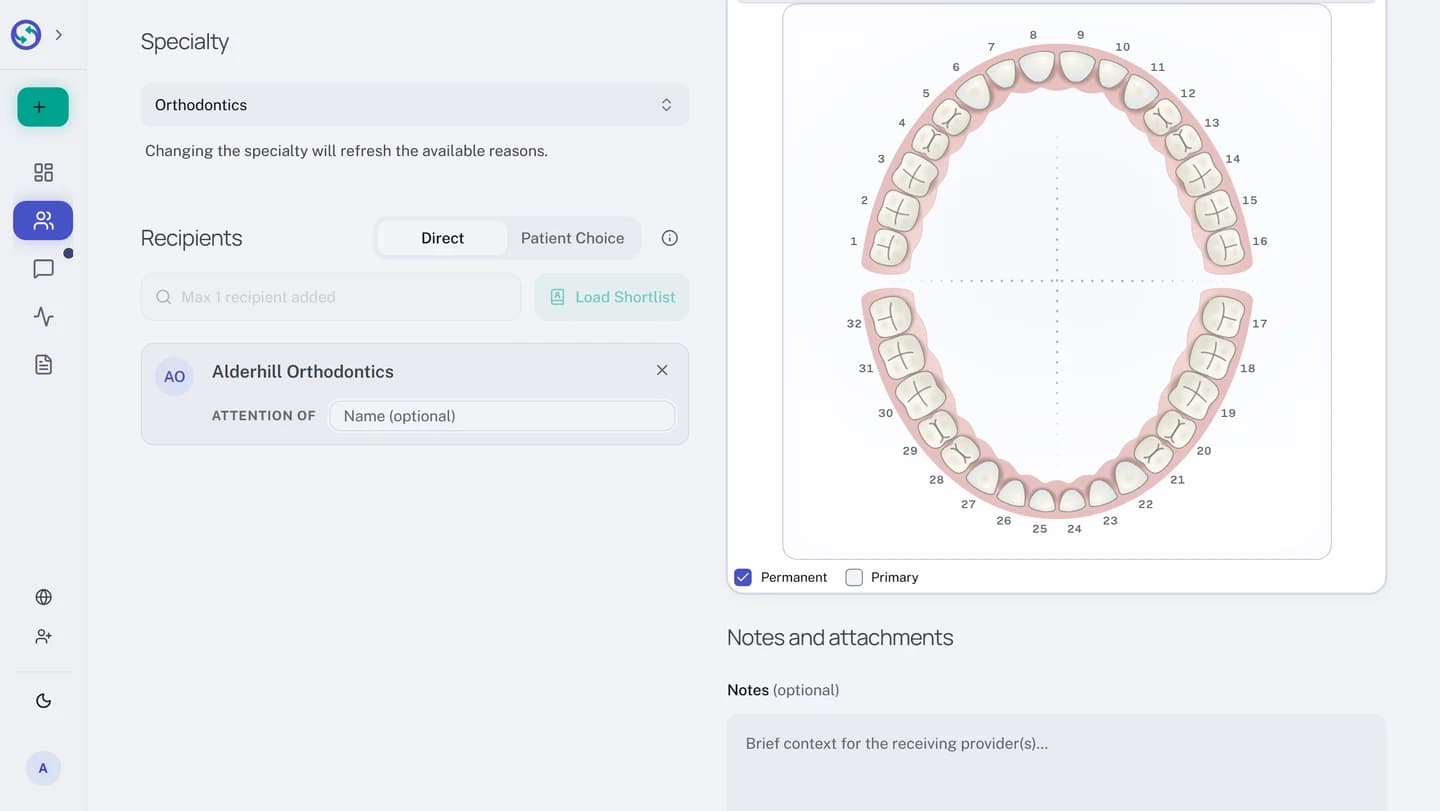
The Recent shortcut
Select the search box before typing anything and a Recent list opens instead of results: up to three providers you have personally referred to in this specialty before. One select adds them, no typing.
The list is yours alone, built from your own referrals rather than your practice's. It never lists external contacts, and anybody already on the referral drops out of it. Start typing and the list switches to search results; the two never stack.
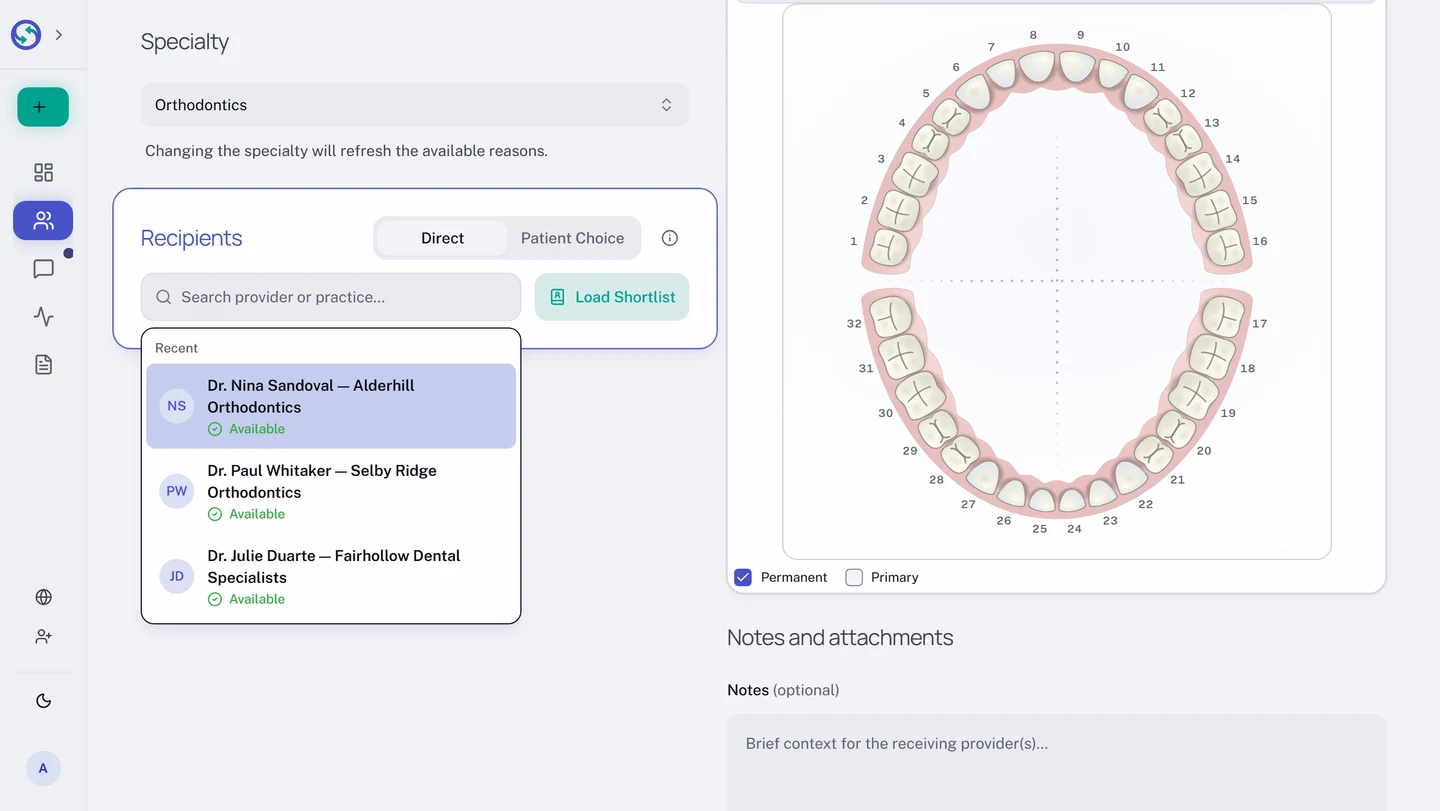
The Load Shortlist shortcut
A Load Shortlist button sits beside the search box. Select it and Syncroly fills the open recipient slots from the shortlist you saved for this specialty, in the order you ranked them, skipping anyone already on the form. A routine referral to your usual specialists needs no typing at all.
The button disables itself with a reason when it cannot help: No shortlist available for this specialty. when you have not built one, and a note that you have reached the recipient limit once the referral is full. The General category has no shortlists, so the button is not on a General referral form.
Add a provider who is not on Syncroly
Not everyone you refer to is on Syncroly yet, and that does not stop the referral. When your search finds nothing usable, the results list offers the way through: a row that repeats what you typed, says it was not found, and asks Add as external contact?.
The option appears on both referral types. On a Choice referral Syncroly emails the practice a general invitation to join when you send, and nothing about the referral: that stays private until the patient shares it with them. On a Direct referral the email says a referral is waiting, and they see it once they set up their profile; the section below covers what that looks like.
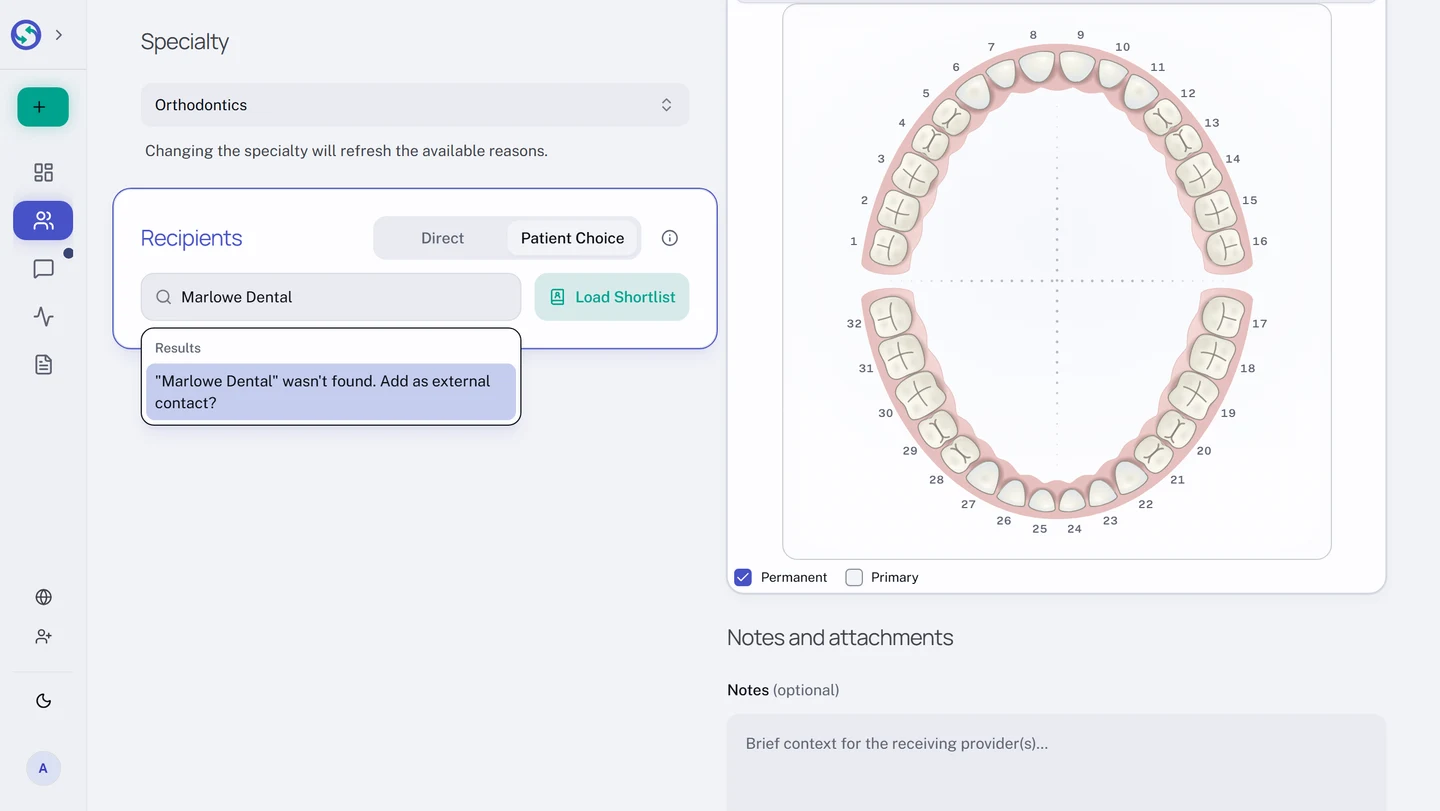
- In the
Recipientsblock, choose your category's Choice option on theReferral typetoggle. - In the search box, type the practice or provider name.
- In the results list, select
Add as external contact?. - In the
Add external contactdialog, choosePracticefor a practice or front desk, orProviderfor an individual clinician. - Fill in the required fields:
Practice name *for a practice,First name *andLast name *for a provider. - Fill in
Email address *. - Add a
PhoneandWebsiteif you have them. - Select
Add Recipient.
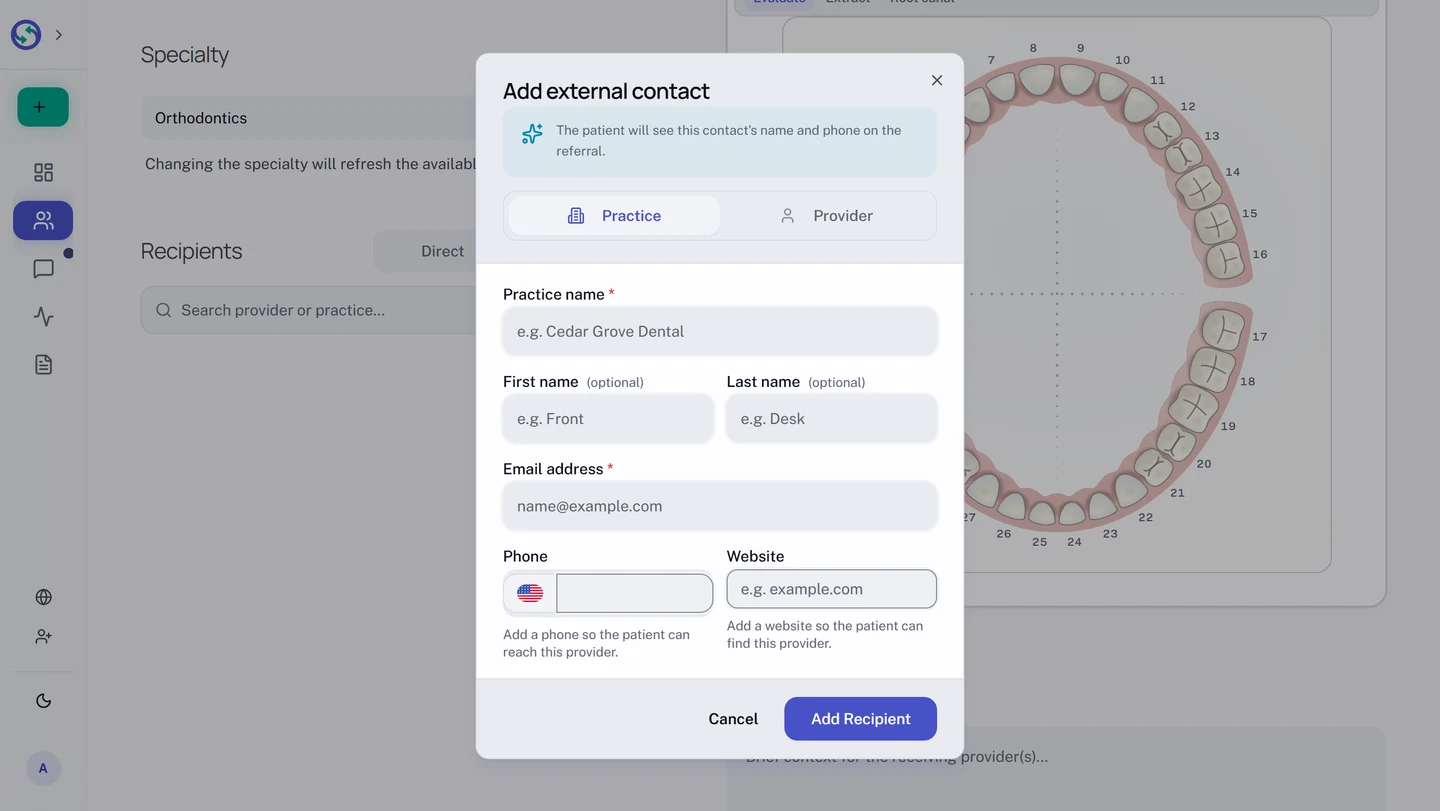
A name and an email address are all Syncroly requires, but add the phone and website if you have them: the patient sees this contact's name, phone, and website on their referral, and the phone is how they reach a practice that is not on Syncroly. The dialog hints say the same, with pet owner on a veterinary referral and person on a General category one.
External contacts on a Direct referral
An external contact can be the one recipient of a Direct referral. Because Direct means you are attesting consent on the form, Syncroly emails the practice the moment you send: the message says a referral is waiting for them and links to setting up a free Syncroly profile. The consent line above the button tells you this before you confirm, and the toast afterwards names the practice you invited and adds They'll see this referral when they claim their profile.
The practice sees nothing until it finishes that setup, so the patient's page asks them to call the office to schedule in the meantime. Check the email address on the recipient card before you send; it is where the invite goes.
Moving the toggle with recipients on the form works the same for every kind of recipient. Switching to Direct with more than one recipient asks first: Switch to Direct? names the recipients it will drop and the one it will keep, and you answer Continue or Cancel.