Keep your patients in one place
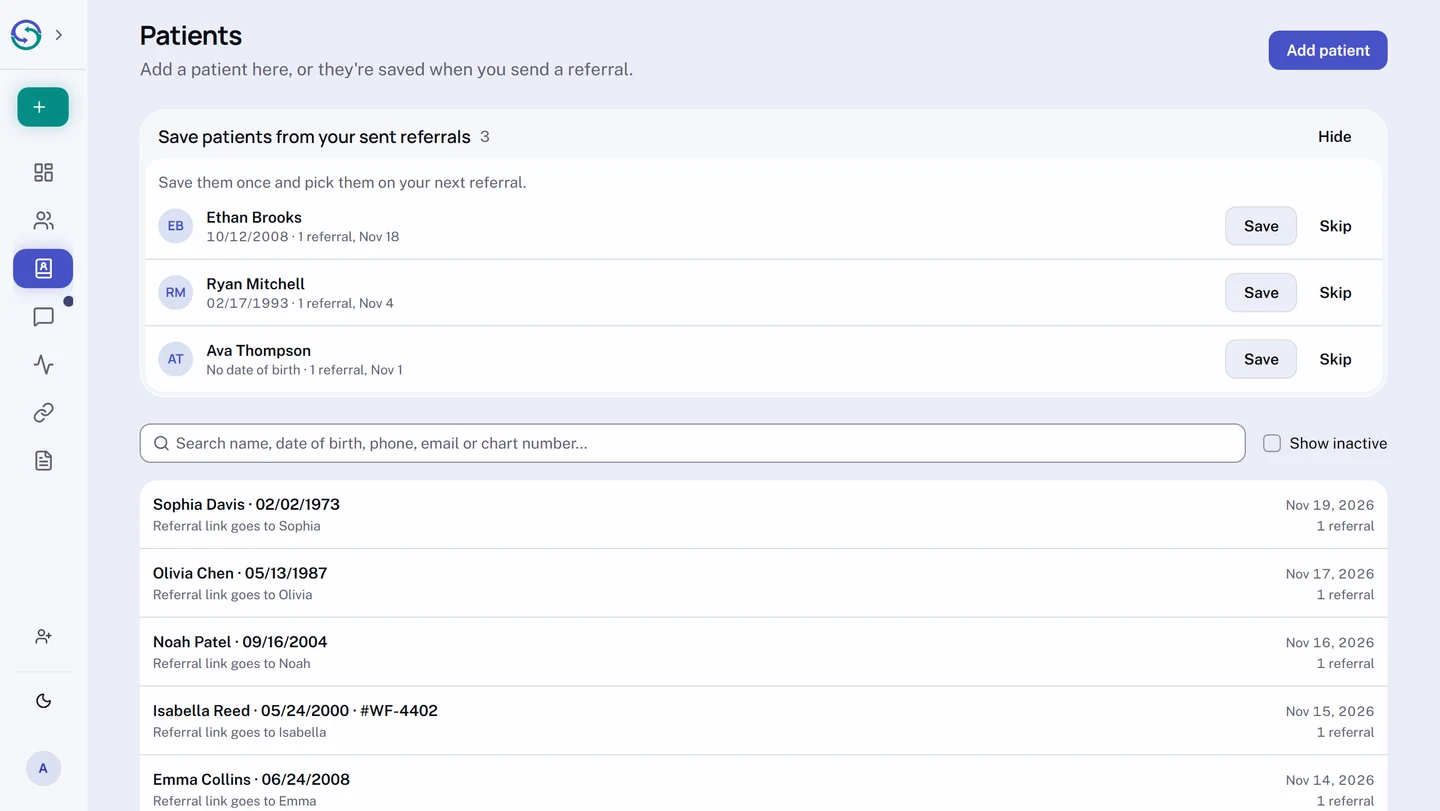
`Patients`, in the sidebar, is your practice's list of patients and who gets each one's referral link. Find someone, keep their details right, and pick them on your next referral instead of typing them again.
On this page
Browse categories
Find a patient
In the sidebar, select Patients. Search by name, date of birth, phone, email or chart number, then select a patient to open their page. Inactive patients are left out until you check Show inactive.
A patient's page lists their referrals, their Details, who gets their referral link under Contact, and a History of changes.
Add a patient
Patients are saved when you send a referral for them. To add one without a referral:
- On
Patients, selectAdd patient. - Fill in
First name *,Last name *andDate of birth *, and aChart numberif you use them. - Under
Referral link goes to, fill inEmail *, and aPhoneif you have one. For a patient under 18, find their parent or guardian, or selectNew parent or guardianand fill in their details. - Select
Add patient.
If they may already be saved, Syncroly shows the match first: select Use existing record, or Create separate record if this is someone else.
Pick a saved patient on a referral
- On a new referral, under
Find a patient, search by name, date of birth, phone, email or chart number. - Select the patient. Their name, date of birth and who gets the referral link fill in.
- Finish the referral as usual.
To pick someone else, select Change patient. For someone who isn't saved, select New patient. If they match a saved patient, the form asks before you can send.
You can also start from the patient: select New referral on their page.
If you edit the email or phone on the referral, the saved details change too, and the form says so. To change who gets the link, go to the patient's page. The link with their first name, such as Emma's page, opens it in a new tab.
Save patients from referrals you already sent
When your practice has sent referrals for patients who aren't saved, Save patients from your sent referrals lists them at the top of Patients. One row covers every referral for the same person.
- Beside a patient, select
Save. - Check the details, which come from the referral, and fill in anything missing.
- Select
Save patient.
If the patient is already saved, Syncroly asks first, so you can add the referral to that patient instead.
If the patient was under 18 when the referral was sent, or the referral has no date of birth, the email and phone start blank and the form says what to add.
Skip takes one patient off the list for everyone at your practice. Hide hides the whole list, for you only. You can still save any sent referral from its own page with Save as patient.
Remove a referral from a patient
If you saved a referral to the wrong patient:
- Open the patient's page.
- On the referral's row, open the
...menu and selectRemove from this patient. - Select
Remove referral.
The referral itself doesn't change, and you can save it again from its page unless it was withdrawn. Only referrals saved to the patient after they were sent can be removed.
Fix a patient's details
- On the patient's page, in
Details, selectEdit. - Correct the name, date of birth or chart number.
- If you changed the name or date of birth, check
Confirm this is the same person with corrected details. - Select
Save.
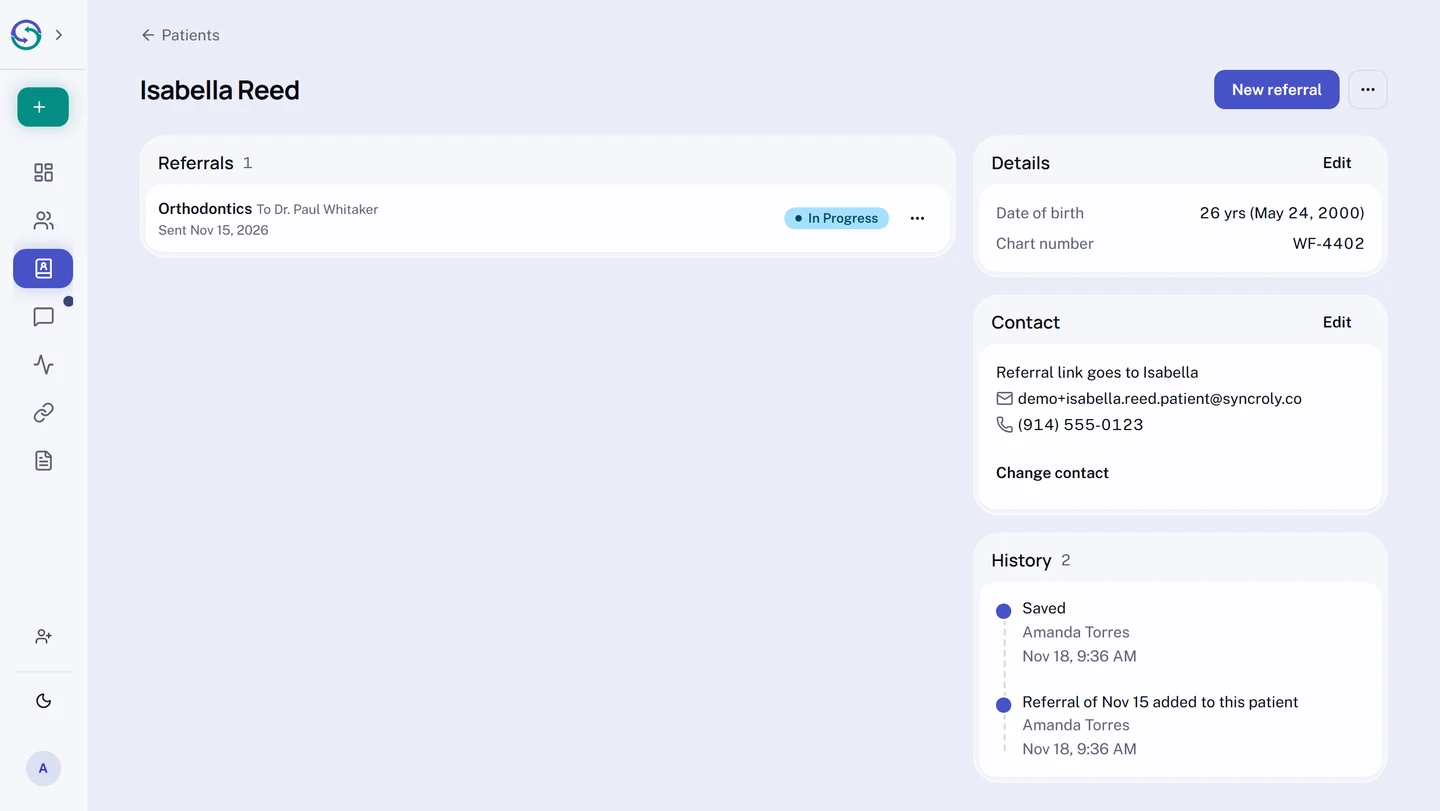
To fix an email or phone, select Edit in Contact. If that contact gets the link for other patients too, such as a parent of two, the form names them, because the change reaches them as well.
Changes apply to referrals you send from now on. A referral you already sent keeps its details: correct the referral itself to change it.
Change who gets the referral link
An adult's link goes to them, a legal guardian or someone else. A patient under 18's goes to a parent or guardian.
- On the patient's page, in
Contact, selectChange contact. - For an adult, select
Send to the patient, or underRelationshipchooseLegal guardianorSomeone else, then find the person underFind a saved personor selectNew person. - For a patient under 18, find the parent or guardian, or select
New parent or guardian. - Check the email and phone, then select
Save.
Referrals you already sent keep their contact. When a patient turns 18 and a parent still gets the link, Contact says so.
If a parent or other contact is saved twice, open the ... menu on Contact and select Merge duplicate contacts.
Merge duplicate records
- On one of the two patients' pages, open the
...menu at the top and selectMerge duplicate records. - Choose the other record, from
Likely matchesor by searching. - Choose the record to keep, then select
Keep this record. - Select
Merge records.
The other record is removed, and its referrals and history move to the one you keep. Its details aren't copied, so fix anything on the kept record afterward. You can't undo a merge.
If the dates of birth differ, check These are the same person. to go on.
Mark a patient inactive
For a patient who has left your practice, open the ... menu at the top of their page, select Mark inactive, and confirm. They stop showing up when your team searches, including on a new referral. To bring them back, check Show inactive on Patients, open their page and select Mark active.
A referral sent for an inactive patient makes them active again.
Who can use Patients
Patients is for dental practices. Everyone on your team can use it, Front desk included. Your list is your practice's own: no other practice can see it. A patient's page shows only the referrals you can open yourself.
At Front desk, Syncroly asks for your PIN when you add, change or merge a patient, or save or remove a referral. Hide isn't offered at Front desk.