Fix or cancel a referral after sending
A sent referral can be corrected without cancelling, re-sending, or duplicating it, and everyone who already has it is told what changed. What a referral cannot be is taken back. Here is what Update details fixes, what happens to the patient link, what to do about the mistakes it cannot fix, and how to print a referral or save it as a PDF.
On this page
Browse categories
What can change, and what cannot
Most of a referral's content can be corrected after sending. The patient's first and last name, date of birth, email, and phone; the notes; the reason codes; and the clinical context, whether that is a tooth chart, animal details, or risk factors. Corrections work on archived referrals and on booked ones.
The rest is fixed the moment you send. The recipients, the referral type, the category and specialty, and the referral's status cannot be edited, and there is no cancel, delete, or unsend anywhere in Syncroly. Once a referral has reached a practice, that disclosure has happened and nothing undoes it. The fields you cannot change are left out of the correction sheet rather than shown grayed.
Some of it is a clinician's to change. Where your practice requires a clinician to send referrals, somebody who is not one keeps the patient and contact details, and on a veterinary referral the owner's information and the animal details. The reasons, the notes, and the clinical context are left out of their sheet, with a line in their place saying a clinician makes those changes. See Send a referral for clinician review.
Correct a referral
- In the sidebar, open
Sent. - Open the referral that needs fixing.
- In the top right of the page, select
Update details. - Change the fields that are wrong. The sheet holds the patient details, the reasons, the notes, and the clinical context, and nothing else.
- Select
Review changes. - Read the before and after of every change. Only what is listed will change.
- If you changed the patient's name or date of birth, confirm the attestation:
This is the same patient. I'm fixing an error in their information. - Select
Save changes.
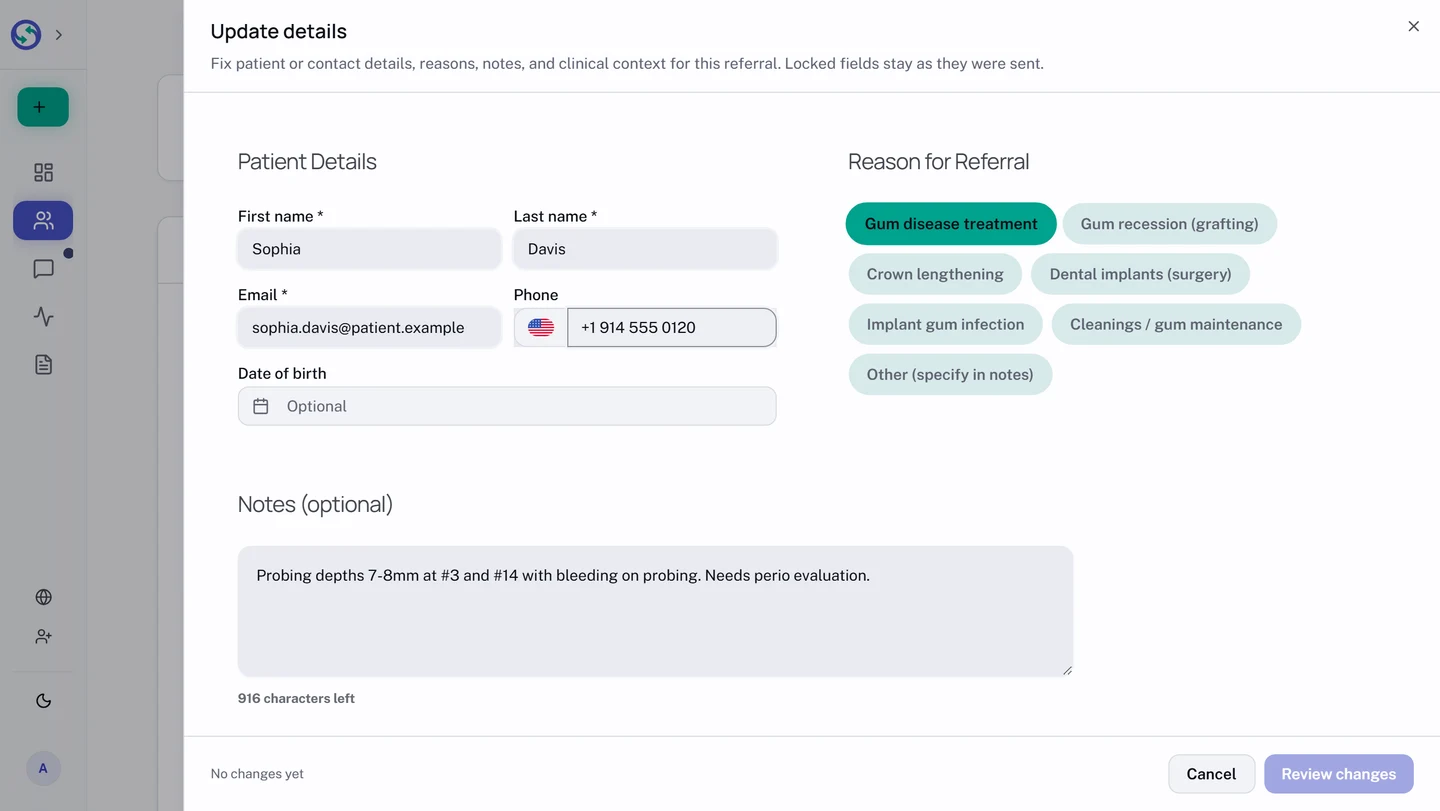
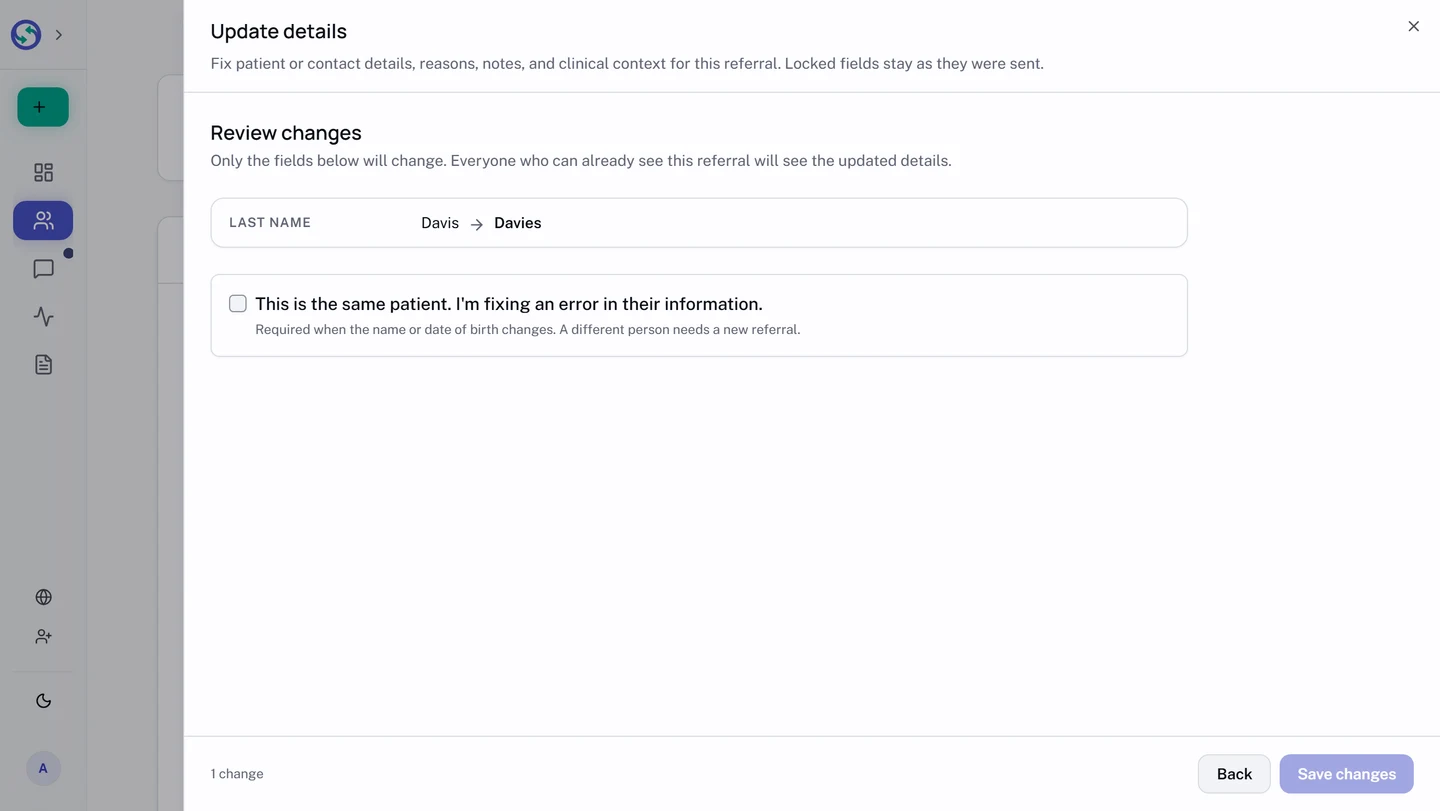
The attestation is required before a change to the name or date of birth will save, because a correction and a swap to a different patient look the same on a form.
If a colleague corrected the same referral while your sheet was open, your save is refused rather than overwriting theirs. Everything you typed stays on screen; refresh the referral and save again on top of their version.
Review changes stays disabled until something differs from what was sent.
Correcting the email or phone resets the patient link
A wrong email address means the patient's secure link is sitting in a mailbox that should never have had it. So correcting the patient's email or phone expires every active patient link on the referral, immediately, booked referrals included, and sends a fresh link to the corrected address. The review stage says so before you save: A new link will be sent to the corrected address.
Only the email and phone do this. Fixing a name, a date of birth, notes, reasons, or clinical context leaves the existing links working.
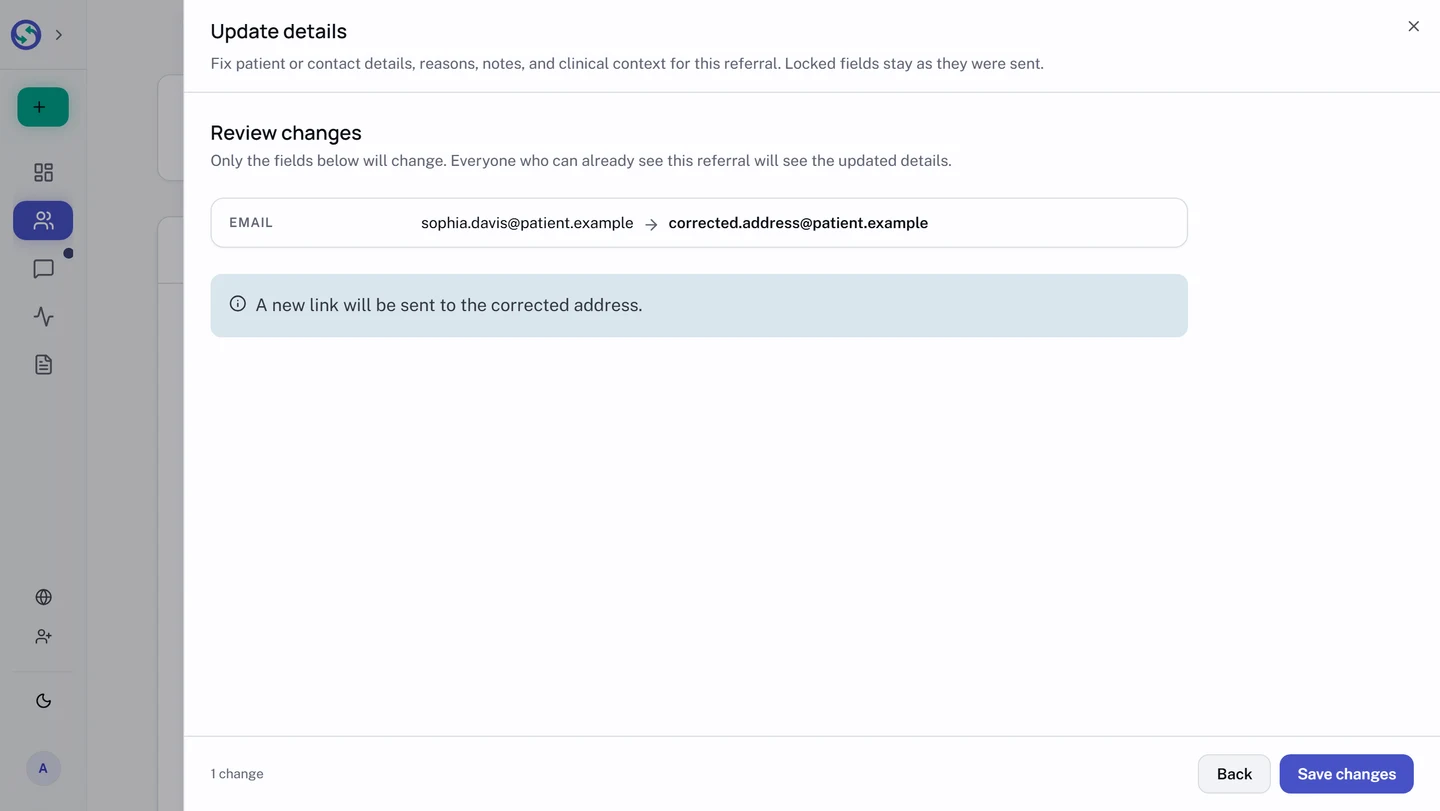
After saving, the banner on the referral tells you what happened to the link. Details updated. A new link is on its way. is the ordinary case. When the referral is already booked, no new link is sent and the banner says so. When the referral has hit its send limit, the banner names the time to try Resend Link again. When delivery fails, the banner offers Resend Link inline. In every case where the old link died, the banner says that the previous link no longer works.
What the other side sees
A correction is not a quiet edit. Each receiving practice that can already see the referral gets a Referral updated banner listing the before and after of what they have not yet seen, and the change is recorded in the referral's history. The actor is shown as the referring practice, never a named person. A Choice recipient the patient shared with later sees only corrections made from their own disclosure onward.
The referral is never re-sent and never duplicated: everyone keeps working the same referral, now with the right details.
There is no cancel. Here is what to do instead
When the mistake is one the correction sheet cannot reach, usually the wrong recipient or a referral that should never have gone out, there are three things you can do.
Archive it. Archiving takes the referral out of the active lists and into the Archived view, and because a referral is one shared record, it leaves the active list on the receiving side as well. Nothing is destroyed and nothing is revoked: the record, its history, and its links stay intact, and unarchiving brings it back.
Send the right referral. Create a new referral to the correct recipient. If the wrong one was a Choice referral the patient had not shared yet, no receiving practice saw the patient details at all, and archiving it closes it out.
Tell the recipient. On a Direct referral the recipient already has the details, so archiving does not take them back. The Conversations card on the referral messages that practice directly; a one-line note that the referral was sent in error is usually enough.
- In the sidebar, open
Sent. - Open the referral.
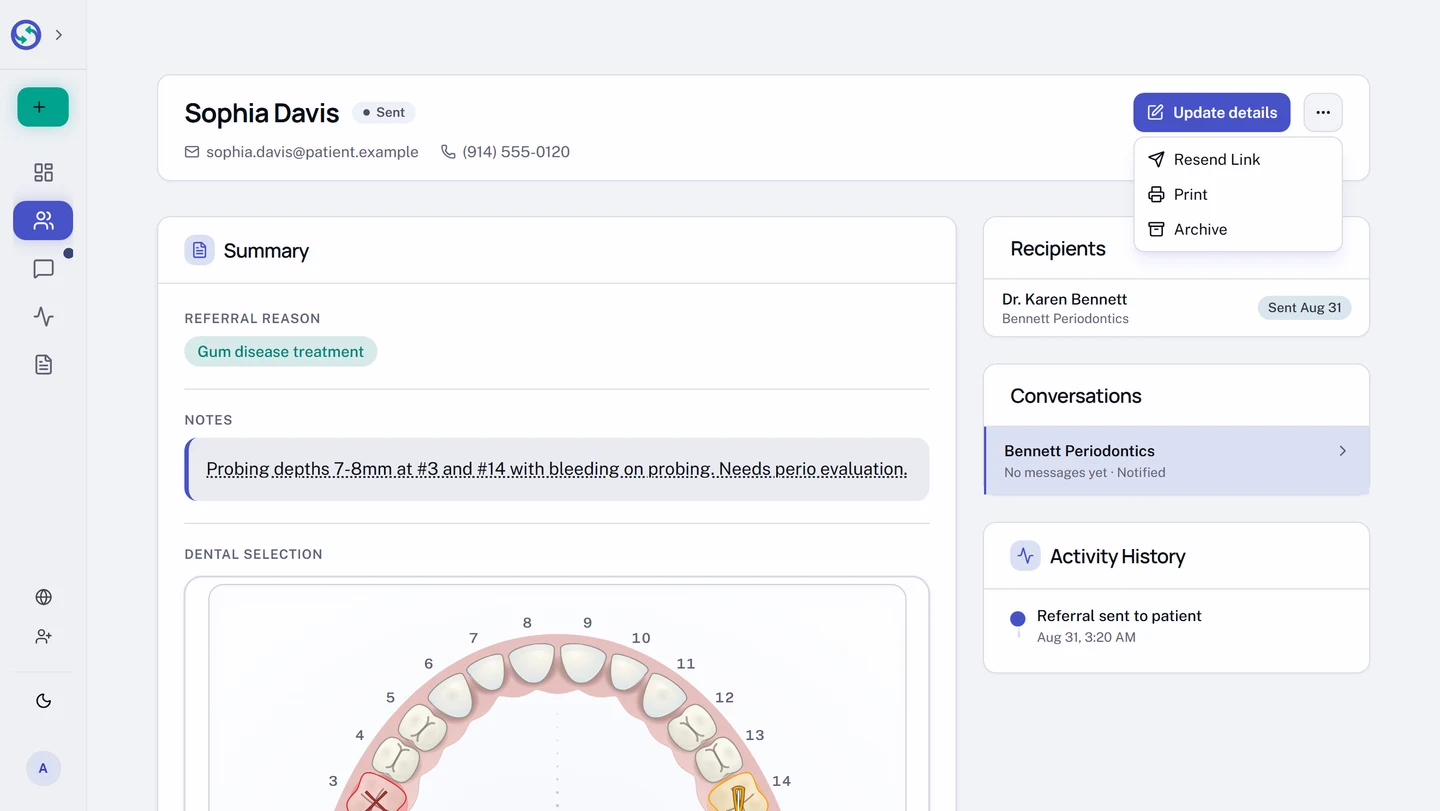
- In the top right of the page, open the
...menu. - Select
Archive. - In the
Archive Referraldialog, selectArchiveto confirm. The referral moves to theArchivedfilter, where you can find it, andUnarchiveit, anytime.
Print a referral, or save it as a PDF
The same ... menu prints the referral, for the times a referral has to leave Syncroly: a copy for the patient chart, a sheet for a colleague who works on paper, a PDF for your own records.
- Open the referral.
- In the top right of the page, open the
...menu. - Select
Print. - In the print dialog your browser opens, choose a printer, or choose to save the sheet as a PDF.
The sheet is the referral as you are looking at it. It opens with Referral record, the practice at the other end, the referral date, and the referral ID, then carries the patient details, the reason, the notes, the clinical context, and the activity history.
The buttons and the Conversations card are left off, because neither does anything on paper. Nothing else is added or removed: what the page shows you is what prints.
A referral you received prints the same way, from the ... menu on its page.