You were invited to join a practice
A colleague added you to their practice on Syncroly, and the invitation email is your way in. This guide covers accepting it, the setup form, and what to do when the link no longer works.
On this page
Browse categories
The invitation email
When somebody at a practice adds you to their team, Syncroly emails you an invitation. The subject line names the person who invited you and the practice you are joining, and the email may carry a personal note they wrote. The button in it opens your invitation on the Syncroly website.
The invitation is valid for 7 days, and the email says so. You are creating your own sign-in, with your own password.
This is a team invitation: it adds you to a colleague's practice, working alongside them. A referral arriving for your own practice needs no invitation, and an invitation to bring your own separate practice onto Syncroly is a different thing again.
Accept the invitation
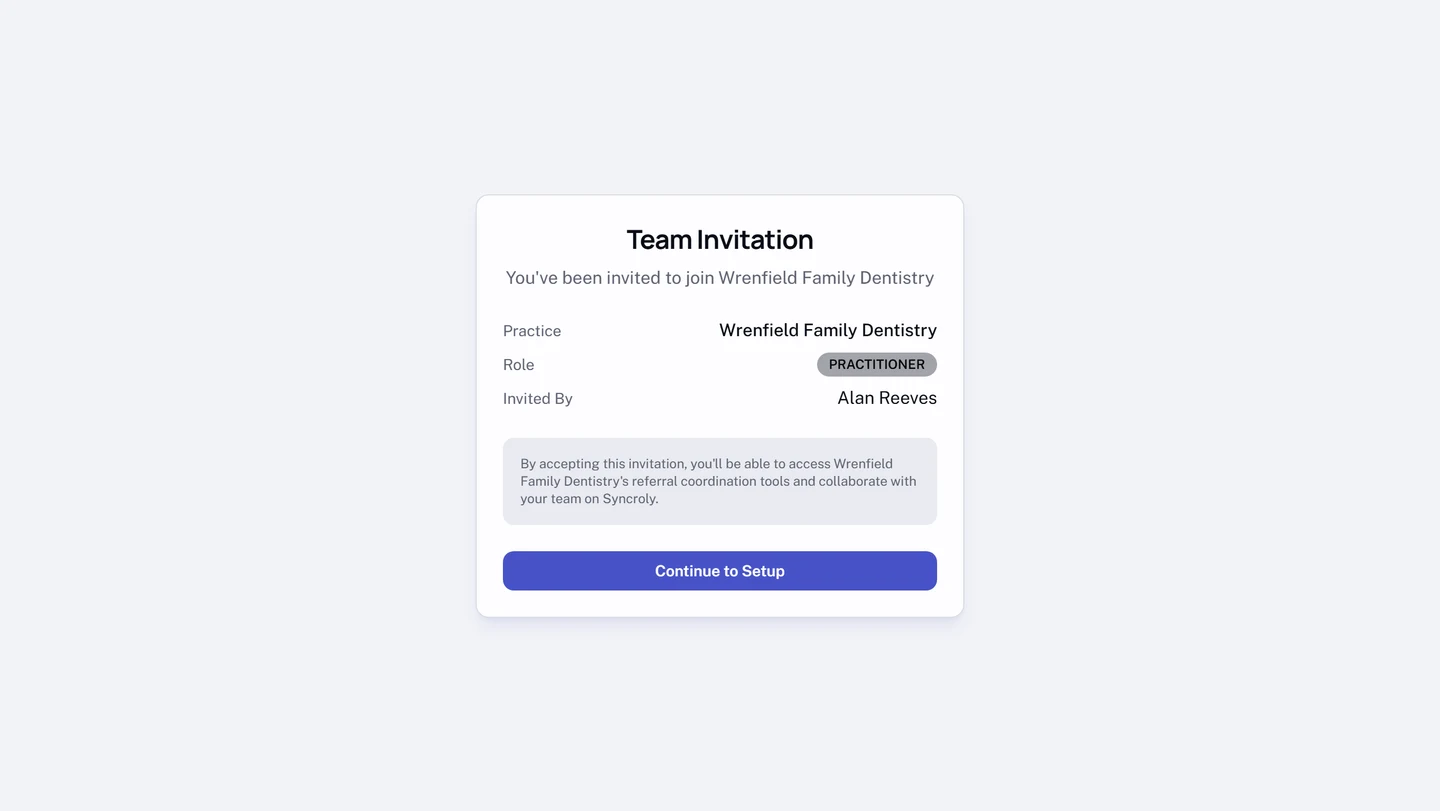
- Open the invitation email and select the button in it.
- On the
Team Invitationpage, read thePractice,Role, andInvited Byrows to confirm this is the invitation you expected. - Select
Continue to Setup. - On
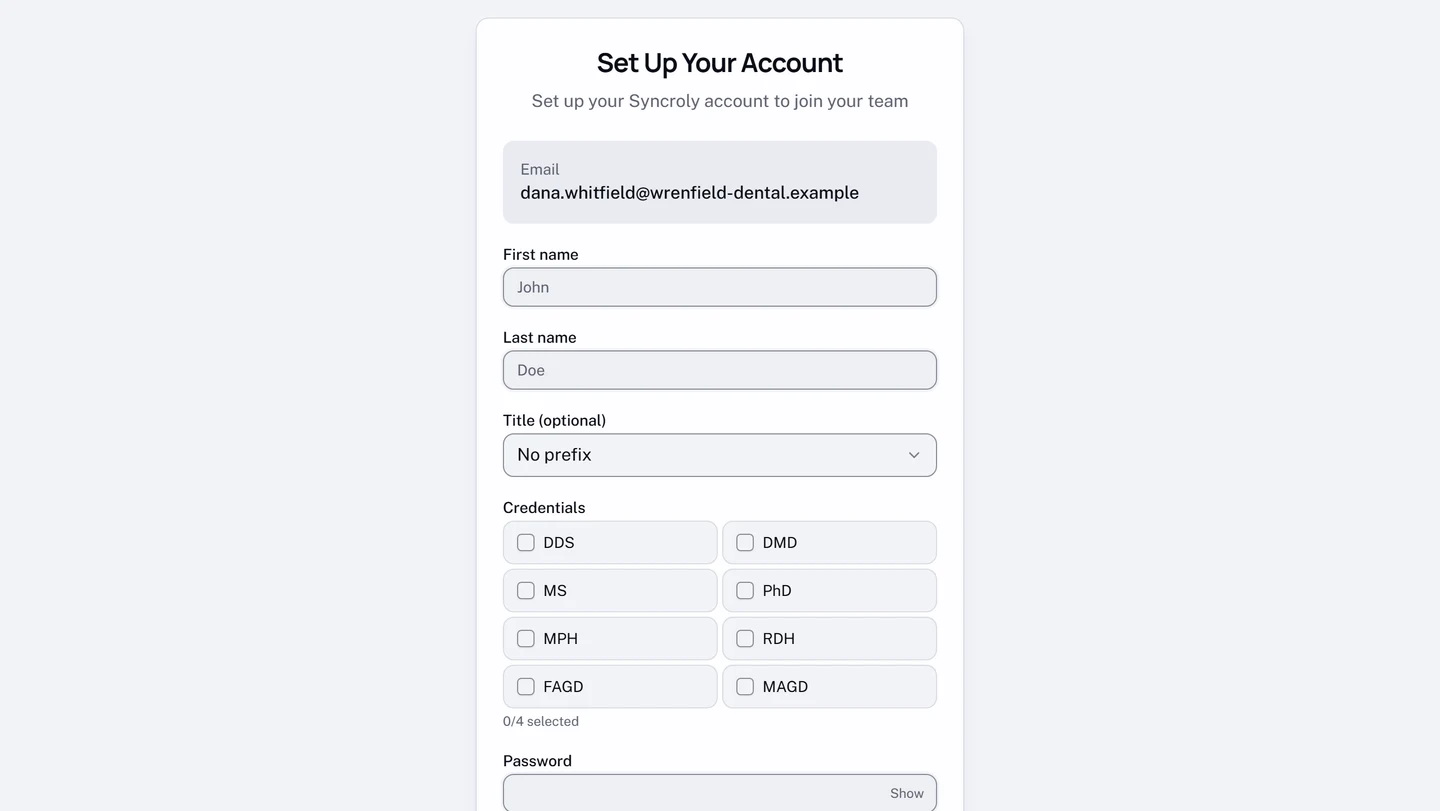
Set Up Your Account, fill inFirst nameandLast name. - In
Password, choose a password of at least 8 characters with a letter, a number, and a symbol. - In
Confirm password, enter the same password again. - Check the box confirming you agree to the
Terms of ServiceandPrivacy Policy. - Select
Sign Up & Join.
Syncroly creates your account, signs you in, and opens your practice's Overview. Your sign-in email is the address the invitation was sent to; the setup form shows it under Email and it cannot be changed there. If the wrong address was invited, ask your colleague to revoke this invitation and send a new one.
If you were invited as a practitioner at a clinical practice, the same form also offers Title (optional) for a prefix such as Dr. and a credentials picker for your qualifications. Both appear where your name is shown to patients, and both can be edited later in your profile settings.
What you join
You join the practice your colleague already built, so none of the practice setup a new owner goes through applies to you: no category to pick, no address to enter.
What you see and do inside is decided by the role on your invitation, shown in the Role row. If the invitation names a role you did not expect, Add your team and choose roles explains what each one covers.
When the link does not work
The invitation page names what happened:
Invitation Expired. More than 7 days passed. Ask the practice to send it again: the person who invited you can resend from their team settings, which emails you a fresh link with a fresh 7 days.Invitation Revoked. Somebody at the practice cancelled it. Contact the practice for a new one if that was a mistake.Already Accepted. This invitation was already used, so there is an account for that address. SelectSign Inand sign in with the password you set.- The practice is no longer active. If the practice that invited you has since closed its Syncroly account, the page says so, and the invitation can no longer be accepted.
Already using Syncroly?
A Syncroly sign-in belongs to one practice. An invitation creates a new sign-in, so it is refused for an email address that already has one. If you already use Syncroly at another practice and want to join this one too, ask your colleague to invite a different email address of yours.