List your practice's insurance types and payment options
Pick the types of insurance and payment your practice works with, such as in-network PPO plans or Kids Medicaid & CHIP at a dental office. Patients and pet owners see them on your card in their referral link, and other practices see them on your profile.
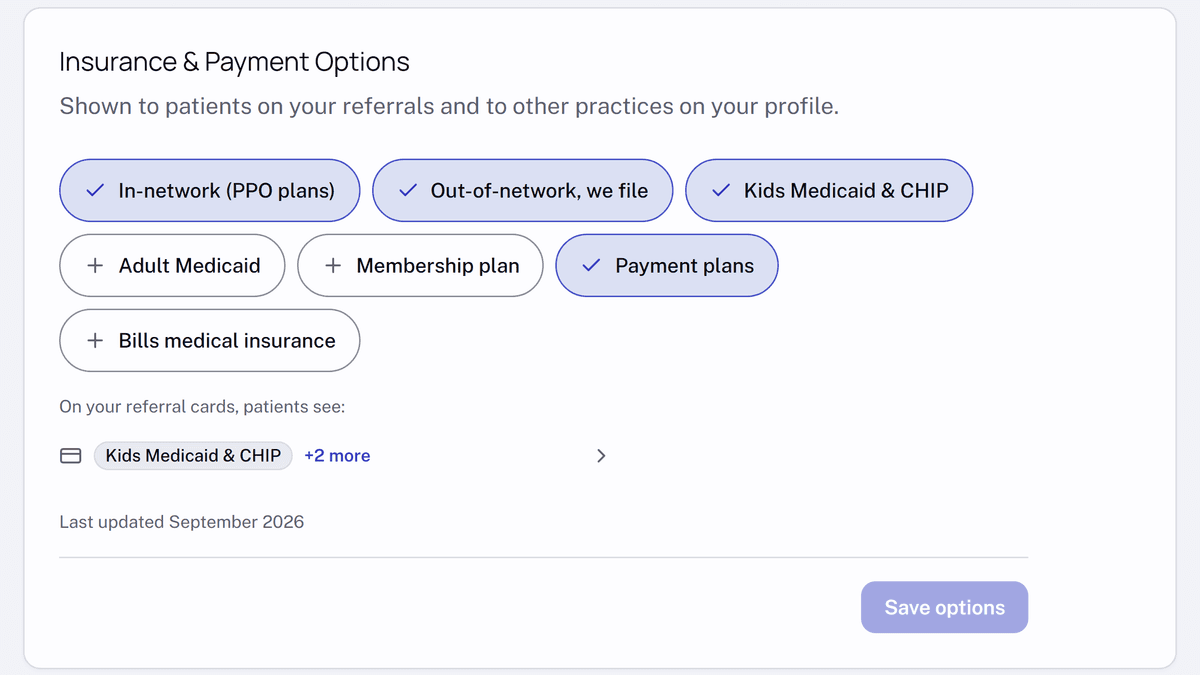
In dental referrals, the first question is often whether the patient's insurance will work at the practice they are being sent to. Now each practice answers it once, in its own settings, and the answer shows wherever that practice appears. Veterinary hospitals can say whether a pet insurer can pay the clinic directly, and whether they offer payment plans or financial aid.
The list names types of insurance and payment, never specific insurers or plans, so patients still check their own plan with the office. Owners and administrators set it up:
- In settings, under
Practice, openGeneraland findInsurance & Payment Options. - Select every type that applies, for example
In-network (PPO plans)andKids Medicaid & CHIPat a dental office, orInsurer pays the clinicat a veterinary hospital. Then selectSave options. - Check the line under the options. It is what people see on your card in a referral link; select it to open the full list with a short note on each option.
On a referral link, each practice card shows its first option or two, and the full list opens from there with a reminder to confirm with the office before the visit. In the app, a practice's options appear on its profile. When you start a referral, the profile link beside each practice or clinician you select opens in a new tab, so you can check how the person can pay there without leaving your draft.
New practices can fill it in when they sign up, on the Practice details step.