Match your referral form to your brand
You can now change how your referral form looks, on your referral link and on your practice's website, so it matches your brand.
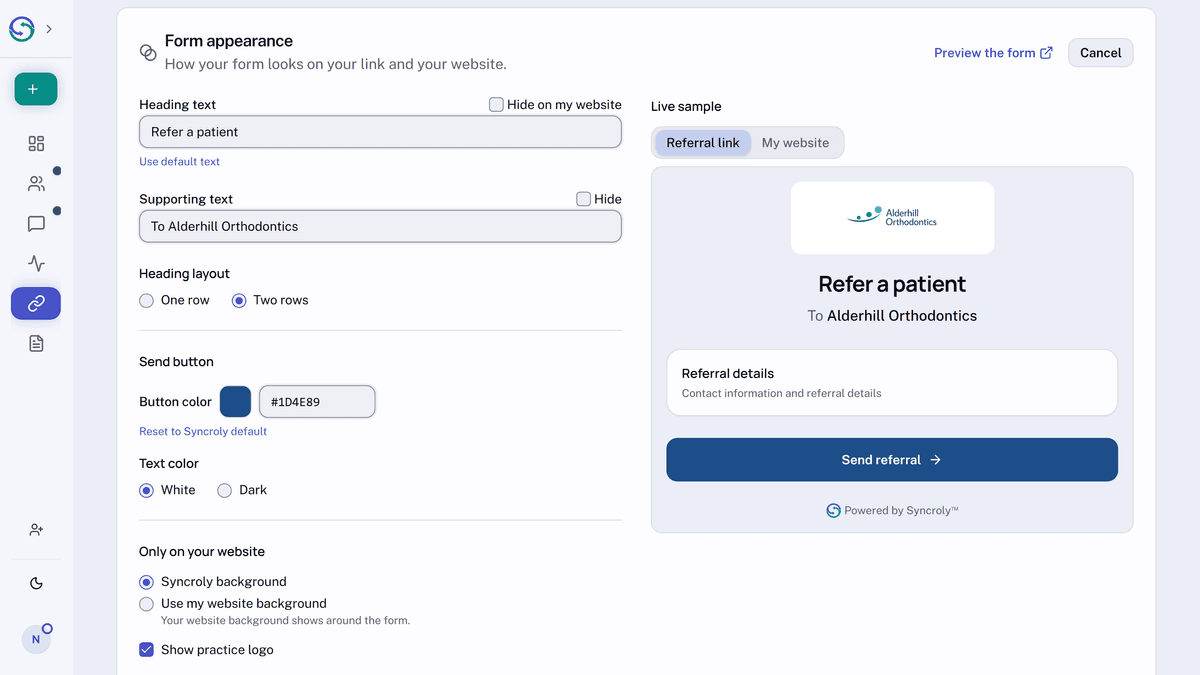
In the sidebar, select Get referred, then select Edit appearance.
On both your link and your website, you can change the heading, the supporting text and the button color. Pick any color for the button, or type its hex code, then choose white or dark text for it.
On your website, you can hide your practice logo and the heading if your page already shows them, and let your website's background show through, so the form sits on your page's own background.
The Referral link and My website tabs show each version as you go. Select Save appearance to keep your changes. The form already on your website picks them up, so you don't need to add it again.